
Blocks
Besides your text, a document can hold blocks: a table of contents Blank fills in for you, forms you fill in, such as a recipe, lines to sign on, diagrams you write as text, and drawings of other apps. You find them all in the Blocks pane at the left of your pages.
The Blocks pane
Press Mod Alt B to open the pane. Each block is a tile with a small drawing of it; rest the pointer on one to read what it is.
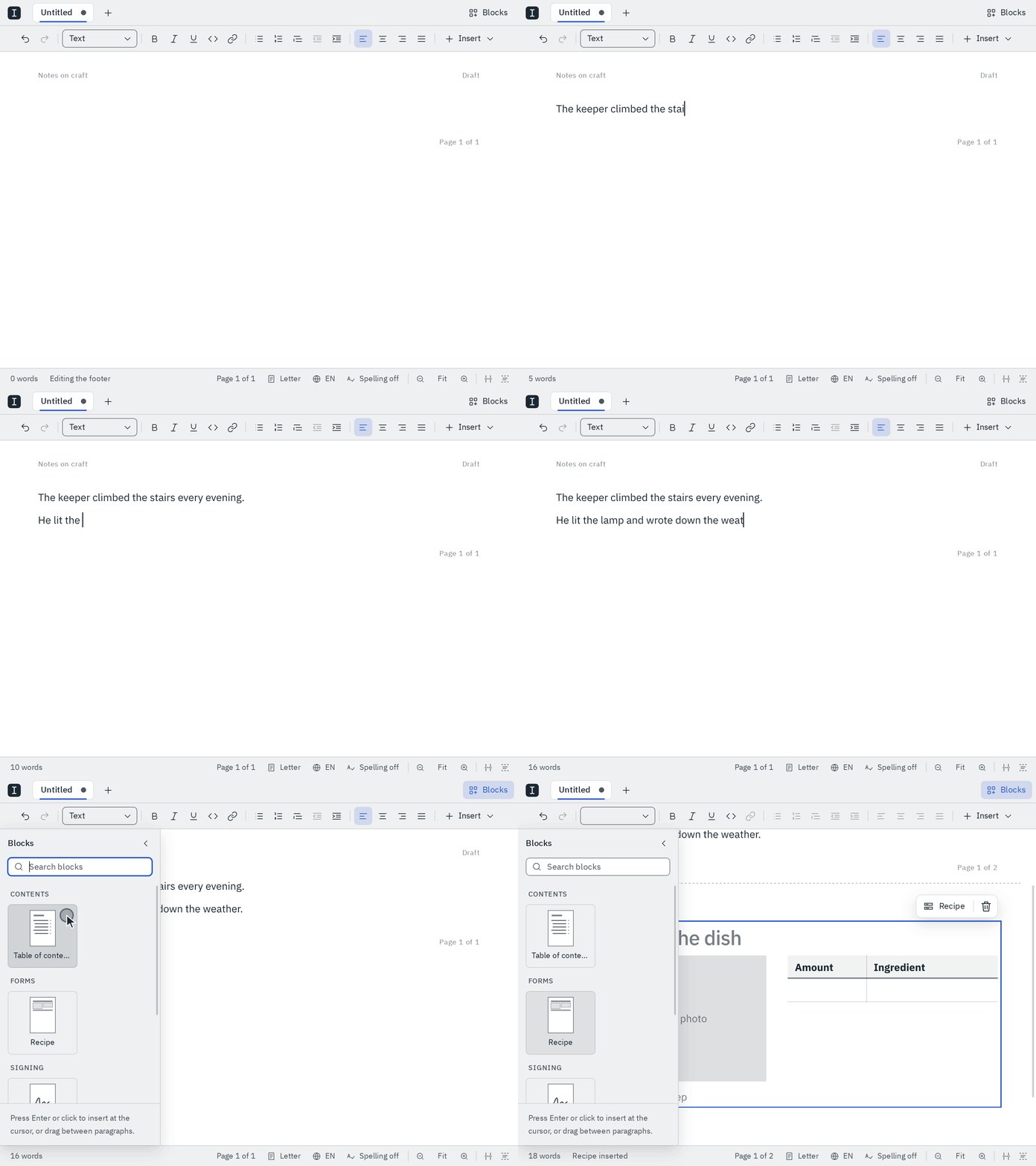
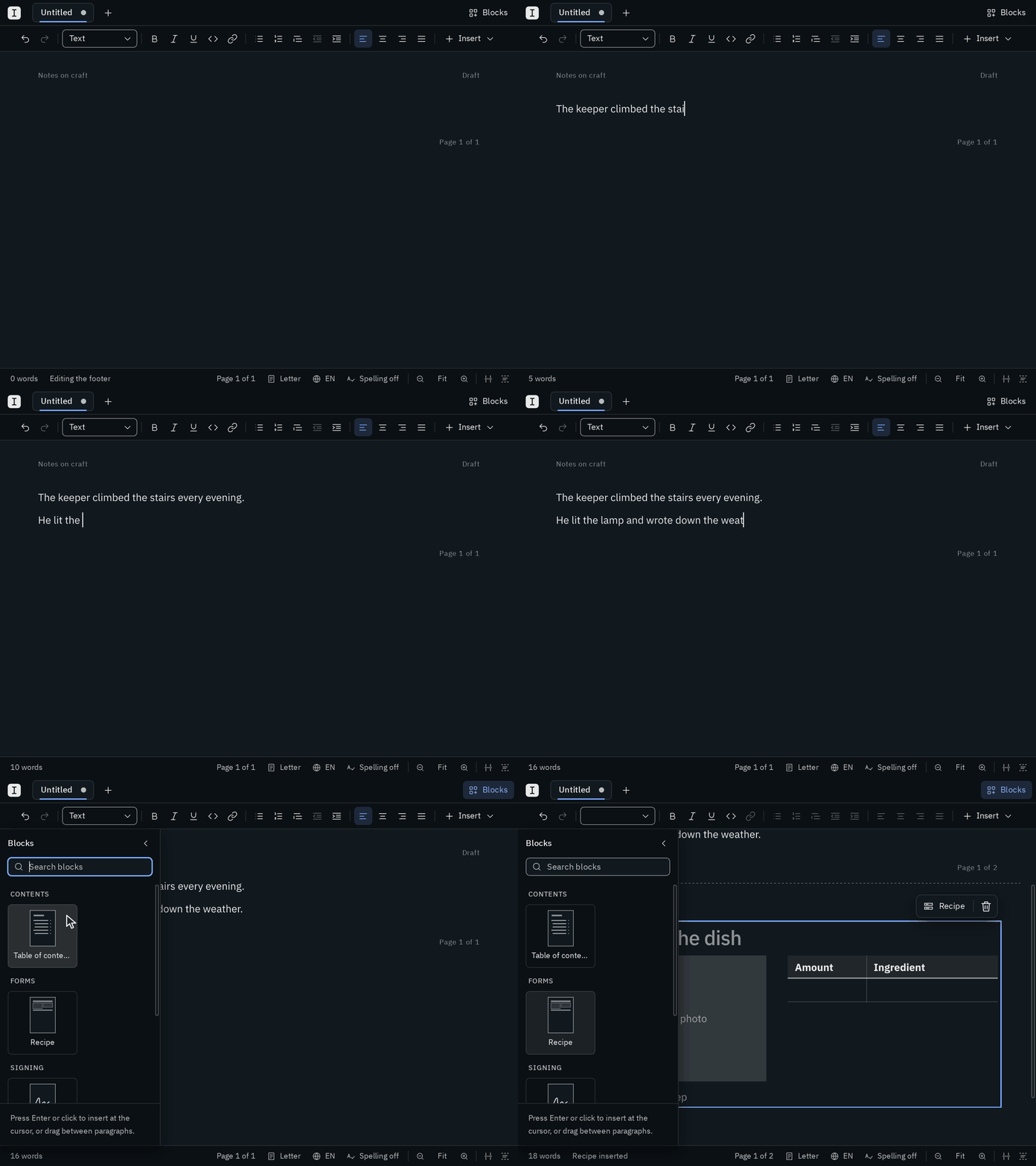
- Insert a block where you're writing: click its tile. It goes in place of the empty line the cursor is on, or right after the paragraph, list, quote or table the cursor is in.
- Insert it somewhere else: drag its tile onto your pages. A line shows where it will go, between two paragraphs; let go there.
Escapechanges your mind. - Find one: type into Search blocks at the top. It looks through the names and what the blocks are, and
Enterinserts the first one it finds. - With the keyboard:
ModAltBputs you into the search.↓goes on to the tiles, the arrow keys move between them, andEnterinserts the one you're on.Escapetakes you back to your text and leaves the pane open. - Close it: press
ModAltBwhile you're in the pane, or the arrow at its top.
On a wide window, the pane stands beside your pages, which make room for it; on a narrow one, it floats over them. Blank remembers whether you left it open.
A new block is selected once it's in, and the status bar says so. Start typing into a form and you're in its first field.
Working with a block
Click a block to select it: a ring in your accent color shows it's selected, and a toolbar above its right end names it. A diagram opens for you to change it instead; Escape then selects it.
- Change it: the pencil on its toolbar opens its settings, as
ShiftEnterdoes. A table of contents, a signature block and a diagram have settings; a form you change by filling it in. - Remove it: the bin on its toolbar,
BackspaceorDelete. The status bar says what was removed, andModZbrings it back. - Move it: drag the selected block to another place on your pages. The same line shows where it will go. Hold
Ctrl(⌥on a Mac) to copy it instead. - Copy it:
ModCcopies it whole, with everything it needs, so it pastes the same into any document in Blank.
A block Blank can't show, say one a newer Blank wrote, stays in your document as it was, as a box that says so. Its toolbar can remove it.
Table of contents
A table of contents lists your headings with the page each one starts on, and keeps itself up to date: rename a heading, add one, or let the text before it grow onto another page, and the table follows right away. The page numbers are the ones your footer shows, roman numerals and a later first page number included.
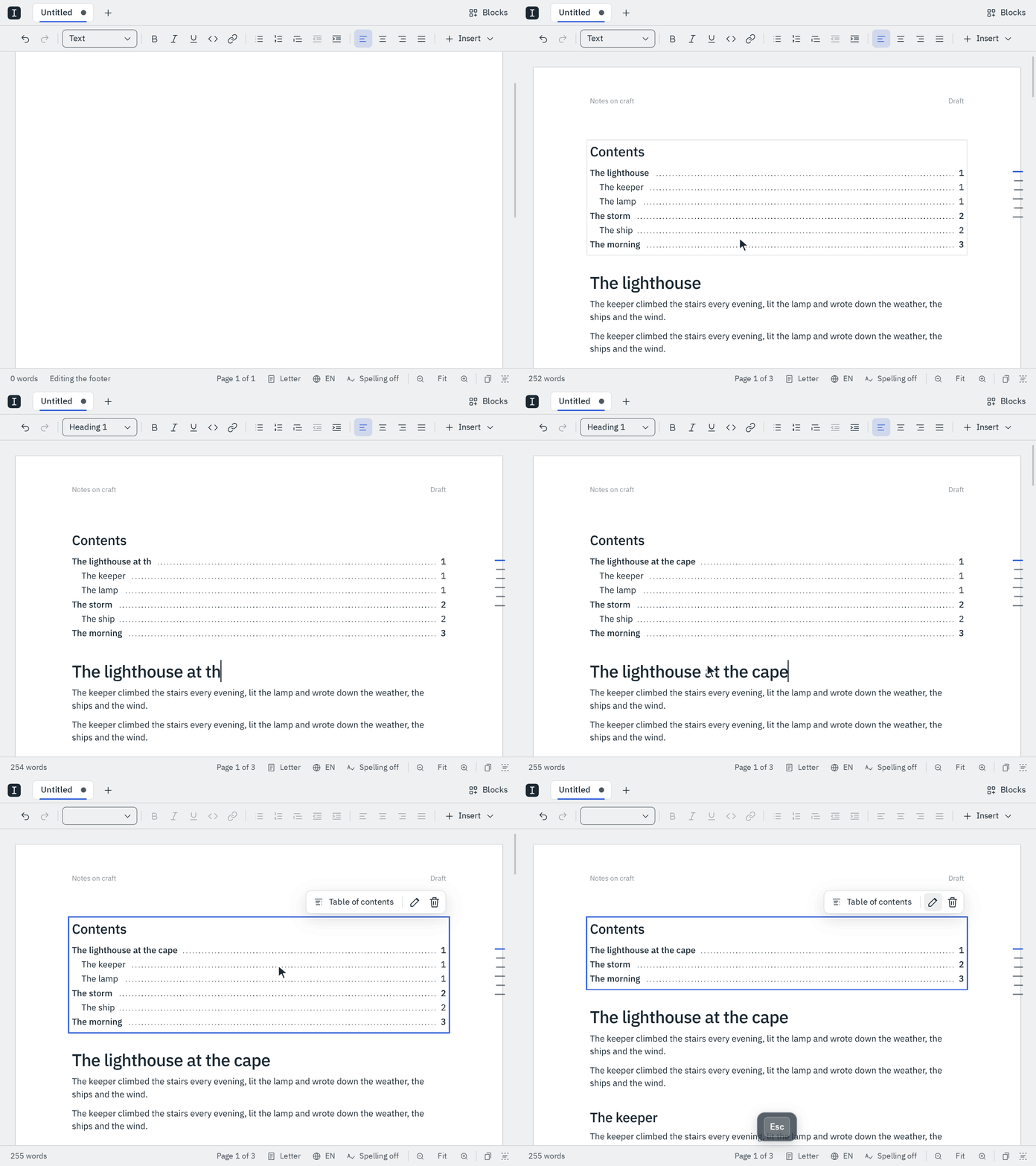
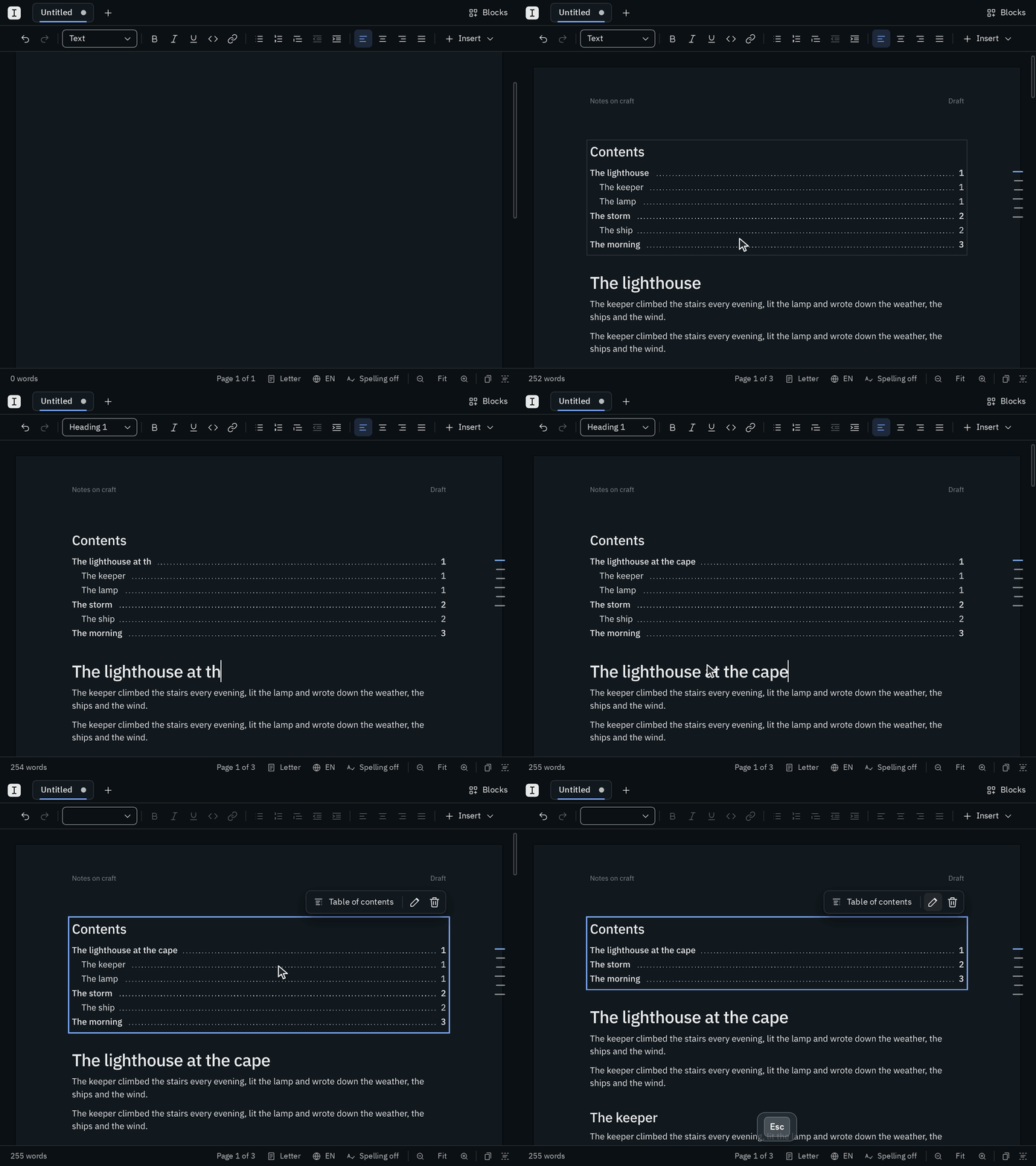
- Insert it from the pane, or type
[toc](or[TOC], or GitLab's[[_TOC_]]) on an empty line and pressEnter, though not inside a list or a quote. - Its settings: select it and click the pencil, or press
EnterorShiftEnter. Headings it lists goes from headings 1 only down to all six levels (1 – 3 is where it starts), and Title is what stands above it. Every change shows at once, andModZtakes it back.Escapeor a click elsewhere closes them. - Jump to a heading:
Mod+ Click on an entry scrolls to its heading, as a link opens. The outline does the same from the keyboard.
It lists the headings the outline lists: those at the top of your document, not in a list or a quote, and not an empty one.
Forms
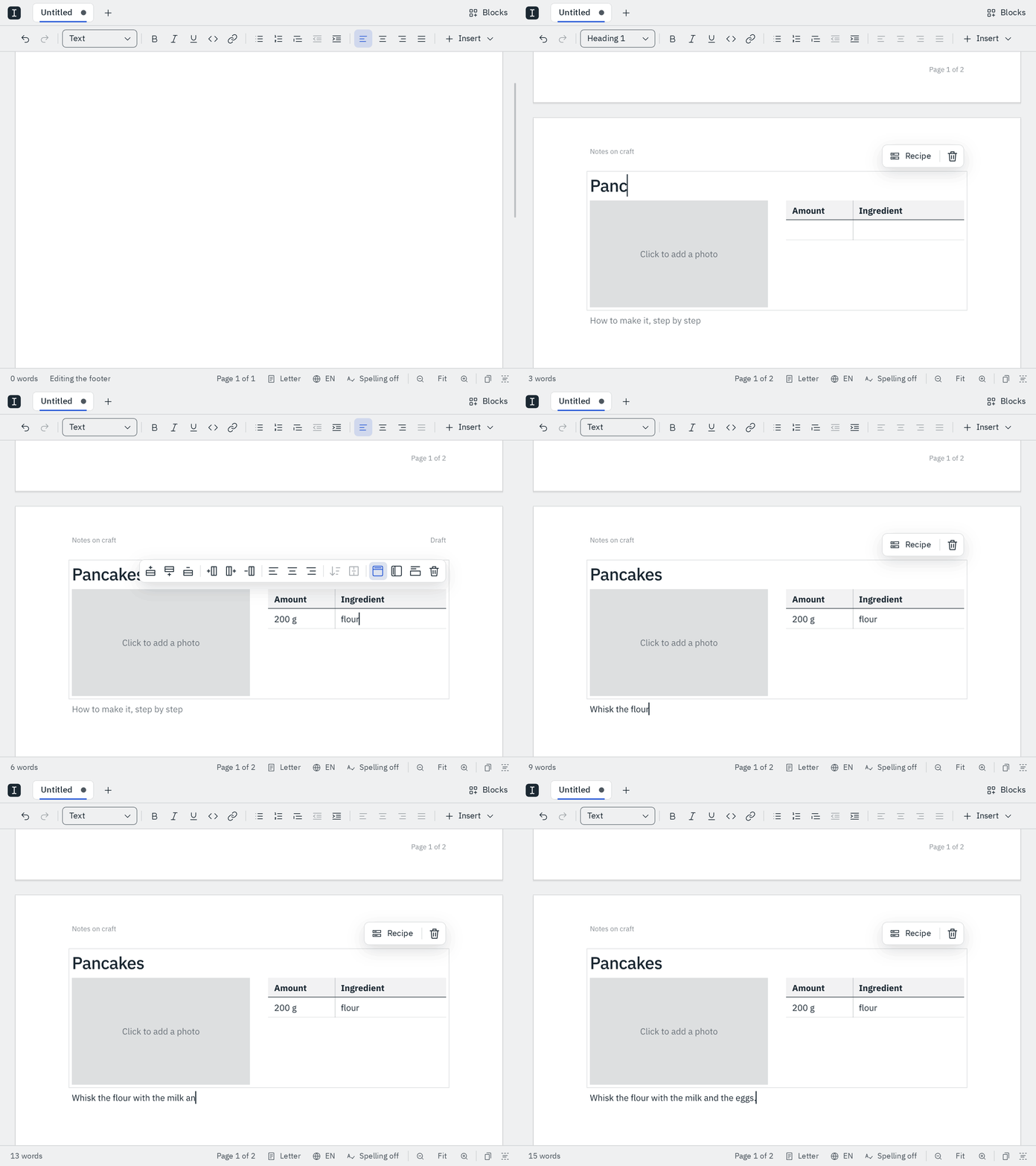
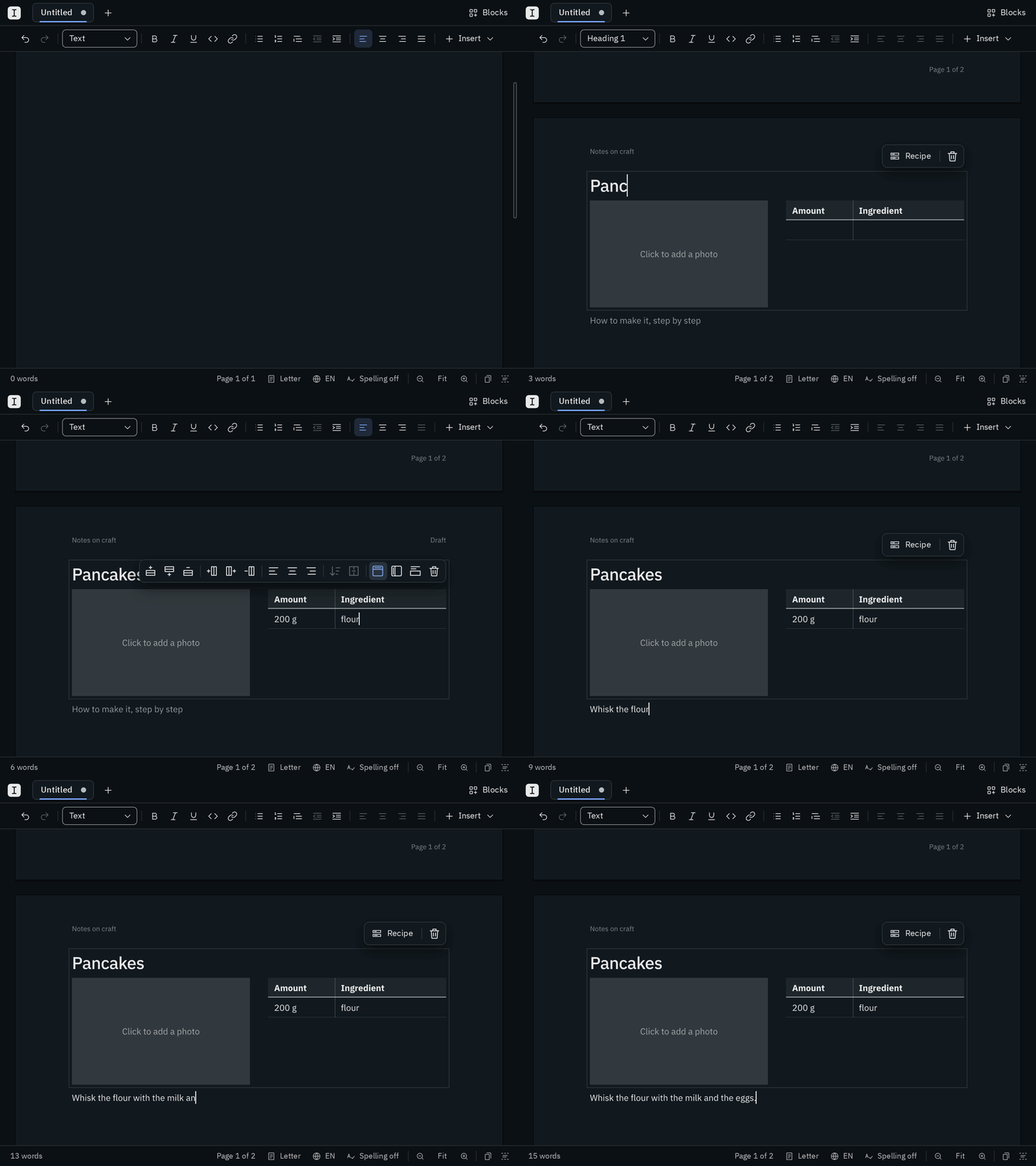
A form is a block of fields to fill in, laid out the same every time: a recipe with its name, a photo beside the ingredients, and the steps. Blank comes with the recipe; you can make your own forms too.
- Put one in from the pane. It starts on a page of its own if it's made to.
- Fill it in: click a field, or start typing right after inserting it.
Tabgoes to the next field andShiftTabback. In a table,Tabgoes from cell to cell and on to the next field after the last cell; in a list or a code block,Tabindents as usual. In a field of one line, such as a name,Entergoes on to the next field too, andShiftEnterbreaks the line. An empty field says what goes in it, on the screen only: the PDF and your printout leave it blank. - Add the photo: click its box, or press
ModAltIin it, and choose a picture. The box is on the screen only. - Its fields stay as they are: a field's text, list, table or picture is yours to change, but the fields themselves stay in their order. A name stays one line in its own style, and nothing you paste can take a field out.
- Select the whole form: press
Escapein a field. A part of a form you copy is pasted as its text, tables and pictures.
Headings in a form are headings of your document: the outline shows them, a table of contents lists them, and so do the PDF's bookmarks. A cookbook of recipes gets a table of contents of its recipes. When your page setup starts headings on a new page, it starts those in forms there too, except in a column beside another or at a place of the page.
A form keeps how it was made when you inserted it: change its form definition later, and the forms already in your documents stay as they are.
Your own forms
You make a form by writing its form definition: a small YAML file in the forms folder next to blank.json. Blank reads the folder whenever the pane opens, and offers each form there by its name, under Forms. One that has a mistake shows up too, grayed out; rest the pointer on it to read what's wrong.
# forms/letter.yaml
version: 1
name: Letter
description: A letter, with the address, date and subject
newPage: true
fields:
  - name: address
    kind: rich
    label: Address
    placeholder: Who it goes to
  - name: date
    kind: text
    label: Date
  - name: subject
    kind: text
    style: h2
    label: Subject
  - name: body
    kind: rich
label: Letter| Key | What it says |
|---|---|
version | a whole number; count it up when you change the fields |
name | what the pane calls it |
description | a few words on what it is, which its tile shows, optional |
newPage | true starts every such form on a page of its own, optional |
fields | the fields, in order: up to 32 |
layout | where the fields stand on the page, optional; see below |
flowTop | where the fields not in frames start on the first page; see below |
Each field has a name (lowercase letters, digits and dashes), a label and a kind:
| Kind | It holds |
|---|---|
text | one line; style sets it as p (the default), small print or a heading h1 to h6 |
image | a picture, which Mod Alt I puts in |
table | a table, which starts with the columns you list (up to 8) |
rich | anything: paragraphs, lists, quotes, code, tables |
A placeholder is what the field says while it's empty. The pane draws each form's tile from its layout.
Fields side by side
Without a layout, the fields stand one below the other. With one, you can put fields side by side in a grid: each cell of a grid is a column, holding its fields one below the other, and the next field goes on below the longest column. The recipe puts its photo beside its ingredients:
layout:
  - field: title
  - grid:
      columns: [1fr, 1fr]
      gap: 8mm
    cells:
      - [field: photo]
      - [field: ingredients]
- field: stepscolumnssays how wide each column is: a length like40mm,2cm,1inor12pt, or a share like1frof the width the lengths leave.[40mm, 1fr]is a narrow column and a wide one. A grid has up to 4 columns.gapis the room between two columns,6mmif you leave it out.cellsfill the columns from the left. More cells than columns start a new row below.- The layout names every field once, in the order of
fields, which is the order you go through them withTab, read them and find them in the file.
A column that is longer than the room left on the page goes on to the next page, beside the others.
Fields at a place of the page
A field can also stand at a place of its own on the page, in a frame, like a letter's address in the window of an envelope. Frames come first in the layout, and a form with frames starts a new page (newPage: true), on which they stand. The other fields flow as usual, from flowTop down if you set it:
newPage: true
flowTop: 98.5mm
layout:
  - frame: { x: 20mm, y: 62.7mm, width: 85mm, height: 27.3mm }
    field: recipient
  - field: subject
- field: bodyxandyare measured from the page's left and top edges,widthis how wide the frame is, andheighthow high it is at least: a frame grows when its field holds more.- A frame holds one field, which can't be a table. Its lines stand one below the other without space between them, as an address's do.
Signature blocks
A line for one person to sign on, with their name, role, place and date below it, under Signing in the pane. See Signing for its settings and how you sign it.
Diagrams
A diagram is a flowchart, a sequence of messages, a timeline or one of many other drawings, written as a few lines of text in Mermaid, the language GitHub, GitLab, Obsidian and Typora draw diagrams from. You write what's connected to what; Blank lays it out and draws it, on your pages, in your PDF and in Word.
flowchart LR
  Idea --> Draft --> Done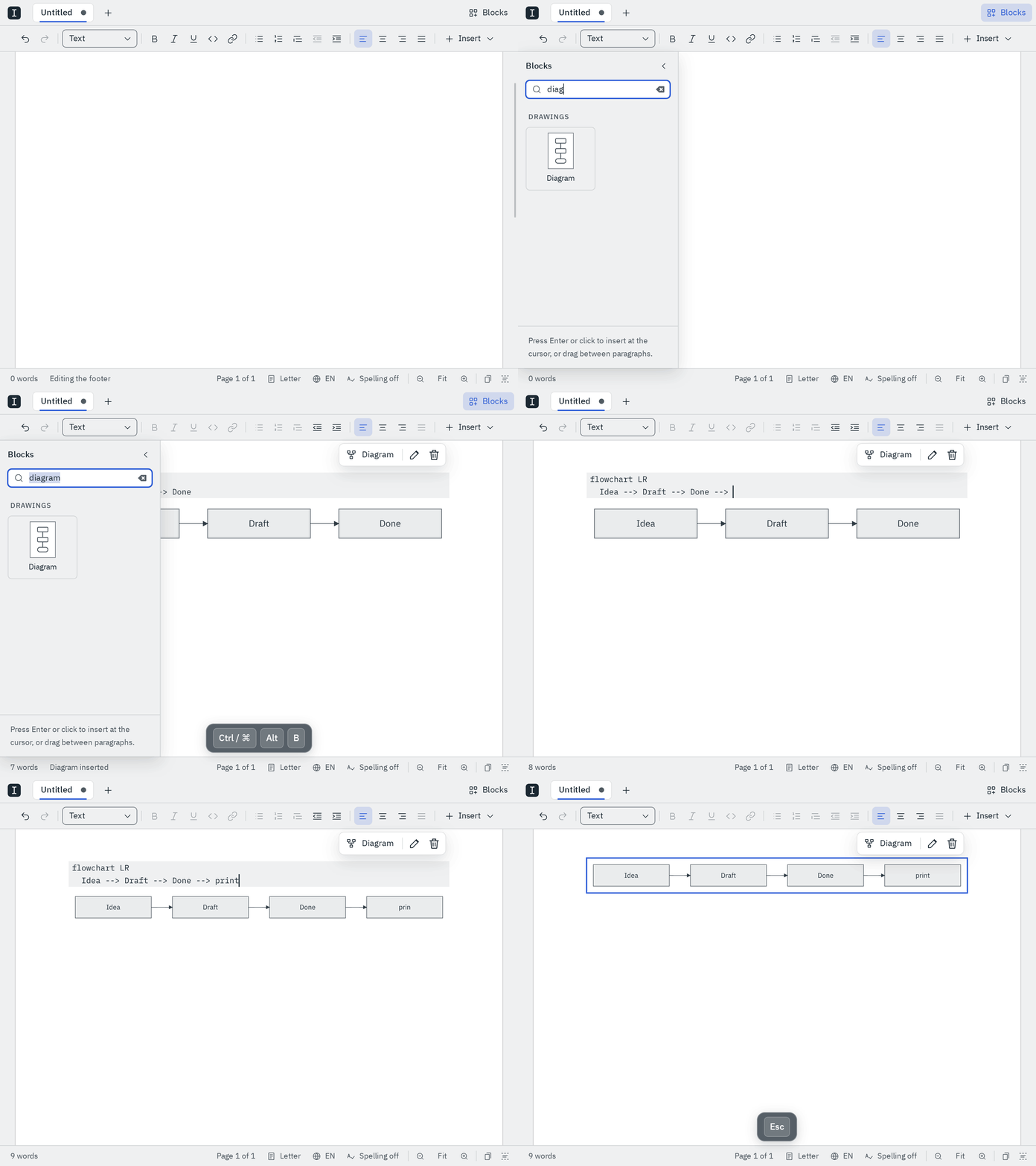
- Insert one from the pane, where Diagram is under Drawings, or type
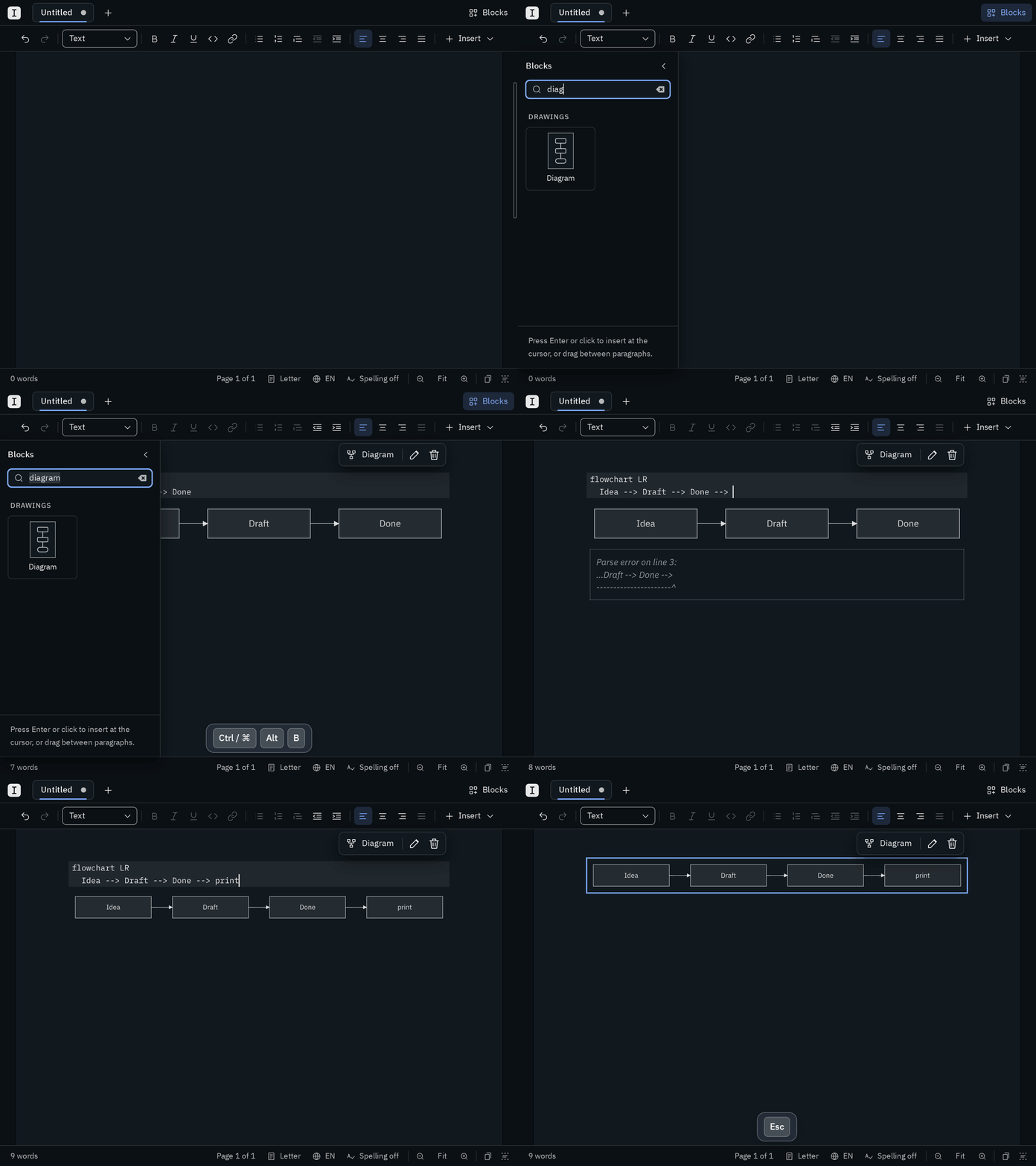
```mermaidon an empty line and pressEnter. Blank opens it with the cursor in its text. - Write it: while the cursor is in a diagram, your page shows its text as code, with the diagram below it, which follows what you type as soon as you pause. While a line has a mistake, the diagram you had stays, and below it Blank says what's wrong and on which line.
- Leave it:
Escapecloses it, and the diagram stays selected. The arrow keys at its first or last line take you out too. - Change it again: click it. With the keyboard, select it with the arrow keys and press
Enter, or just start typing: you go on at the end of its text.↑and↓move over a selected diagram without opening it. - Its settings: select it, or put the cursor in it, and click the pencil or press
ShiftEnter. Width is Fit (as large as it is, at most as wide as your text), or half, three quarters or all of your text's width. Caption is a line below it, aligned as the diagram is, and Description says what it shows, for people who can't see it; left empty, it's its kind, such as "Flowchart". - Align it like a paragraph: left, centered or right, with the buttons on the toolbar or their keys.
Blank draws diagrams in the color of your text, which follows the theme, unless you give a color yourself. A color you give stays exactly as you wrote it in every theme and in the PDF, so a dark color can be hard to read on a dark theme. You give one with style or classDef. The first diagram you open takes a moment to draw; the ones after it come at once.
In your PDF, a diagram stays sharp at any zoom, and its words can be found and copied. In Word, it's a picture that stays sharp too. A diagram that can't be drawn goes into an export as its text, and Blank tells you.
Drawings of other apps
A document can hold a drawing of another app, such as a diagram of draw.io or a sketch of Excalidraw. Apps will bring their drawings to Blank as plugins, which aren't there yet; once one is, the pane lists its drawings under Drawings. Blank already shows, prints and exports the drawings a document holds, the same everywhere, and keeps them as they were.
- Select one with a click or the arrow keys: its toolbar removes it. With its plugin, the pencil and
Enterwill edit it. - Blank removes from a drawing what isn't drawing, such as scripts or links to the web, before it shows it.
How blocks are kept
Blocks go wherever your document goes: Blank keeps them in each format so that they come back whole.
- In your PDF, a block is what it shows. A diagram is drawn with lines and text, so it stays sharp and its words can be searched. Every entry of a table of contents is a link to its heading, and readers that read aloud know it as a table of contents.
- In Word, a table of contents becomes Word's own, with the page numbers of your pages in Blank and links to the headings. Word lays the pages out a little differently, so to number them as Word does, right-click it and choose Update Field. A table of contents from Word, LibreOffice or pandoc comes into Blank as a table of contents too. A form becomes Word's content controls, one for the form and one for each field, named after it: Word users fill them in, but can't take them apart, and an empty field shows its placeholder. Fields side by side stand in the cells of a table without lines, and fields at a place of the page in Word's frames. A signature block is a line to sign on in a content control, with what Blank needs to bring it back as hidden text in it. Blank brings it back from that hidden text, so what you change in Word on its visible lines (the name, the role) isn't kept: change those in Blank. Word's own signature lines (Insert ▸ Signature Line) come into Blank as signature blocks, with the suggested signer as the name and their title as the role. A drawing is a picture, and so is a diagram, with its caption below it in Word's caption style. What Blank needs to bring a block back (a form's definition, a drawing's data, a diagram's text and settings) travels inside the Word file as custom XML, so Blank opens such a document with its blocks again.
- In a markdown file, a block is marked by lines like
<!-- blank:toc@1 depth="3" title="Contents" -->,<!-- blank:signature@1 role="Tenant" -->or<!-- blank:form@1 def="blank/recipe@2#…" -->…<!-- /blank:form -->, which other markdown apps don't show. A table of contents is that one line: Blank writes its entries anew every time, so your file never holds an outdated list. A form's fields stand between them as plain markdown, and at the end of the file Blank keeps a copy of each form's definition, so the file opens the same everywhere. A drawing keeps its app's data and its drawing as SVG, in plain text, so you can see what changed from one version to the next. A diagram is the text you wrote, in a```mermaidblock, exactly as GitHub and the other apps write it, so they draw it too; only a diagram with settings also gets a line like<!-- blank:diagram@1 width="50%" caption="The plan" -->before it and<!-- /blank:diagram -->after it. Its alignment is the<div align="center">around it, as for paragraphs. - OpenDocument (.odt) files will keep blocks once Blank writes them.