
Writing in Blank
Blank shows your text as it will look, not as markdown syntax, and on the lines and pages it will have on paper (see Pages). You format with keyboard shortcuts, by typing markdown, which Blank turns into formatting as you go, or with the toolbar at the top when you'd rather point and click.
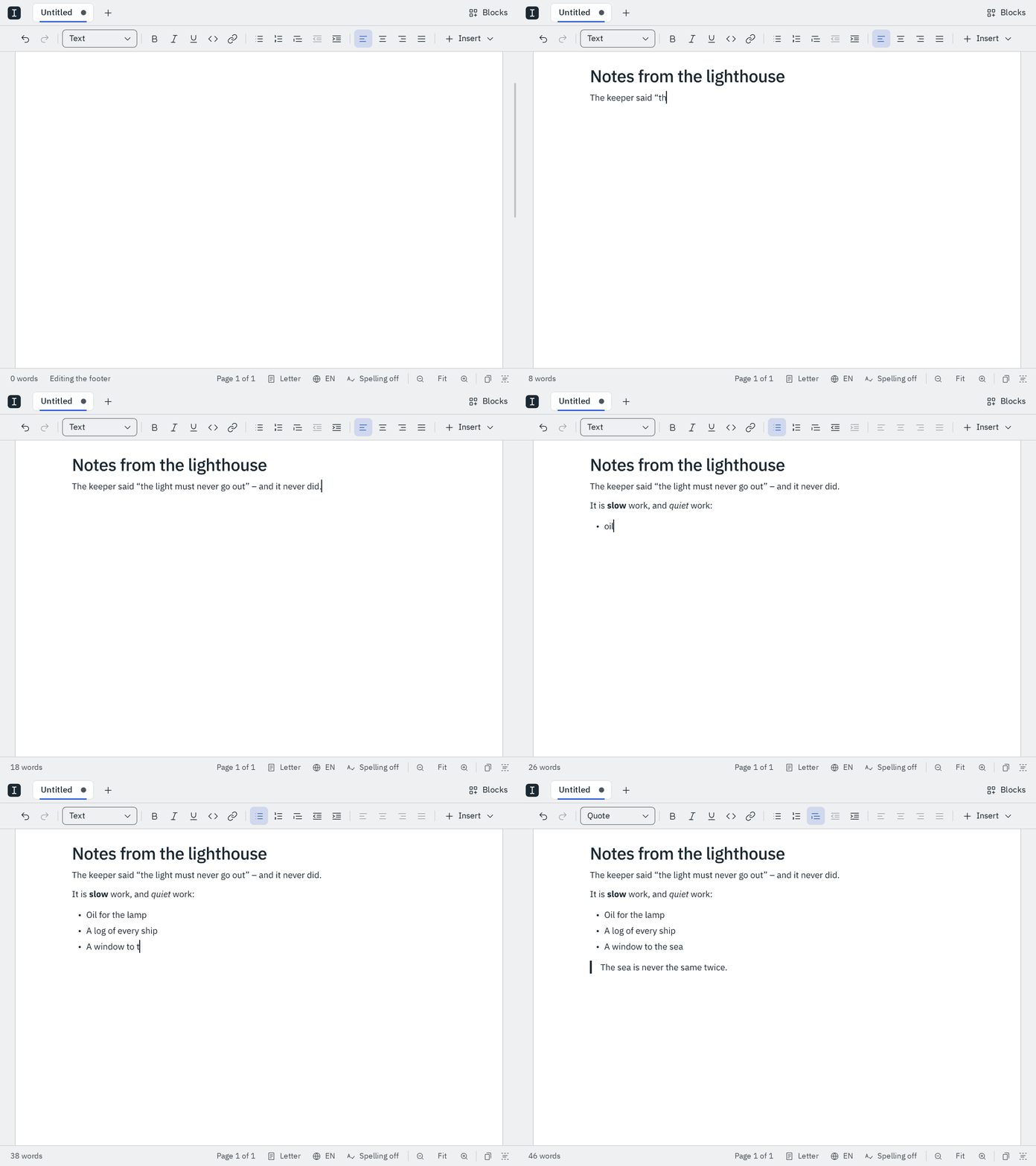
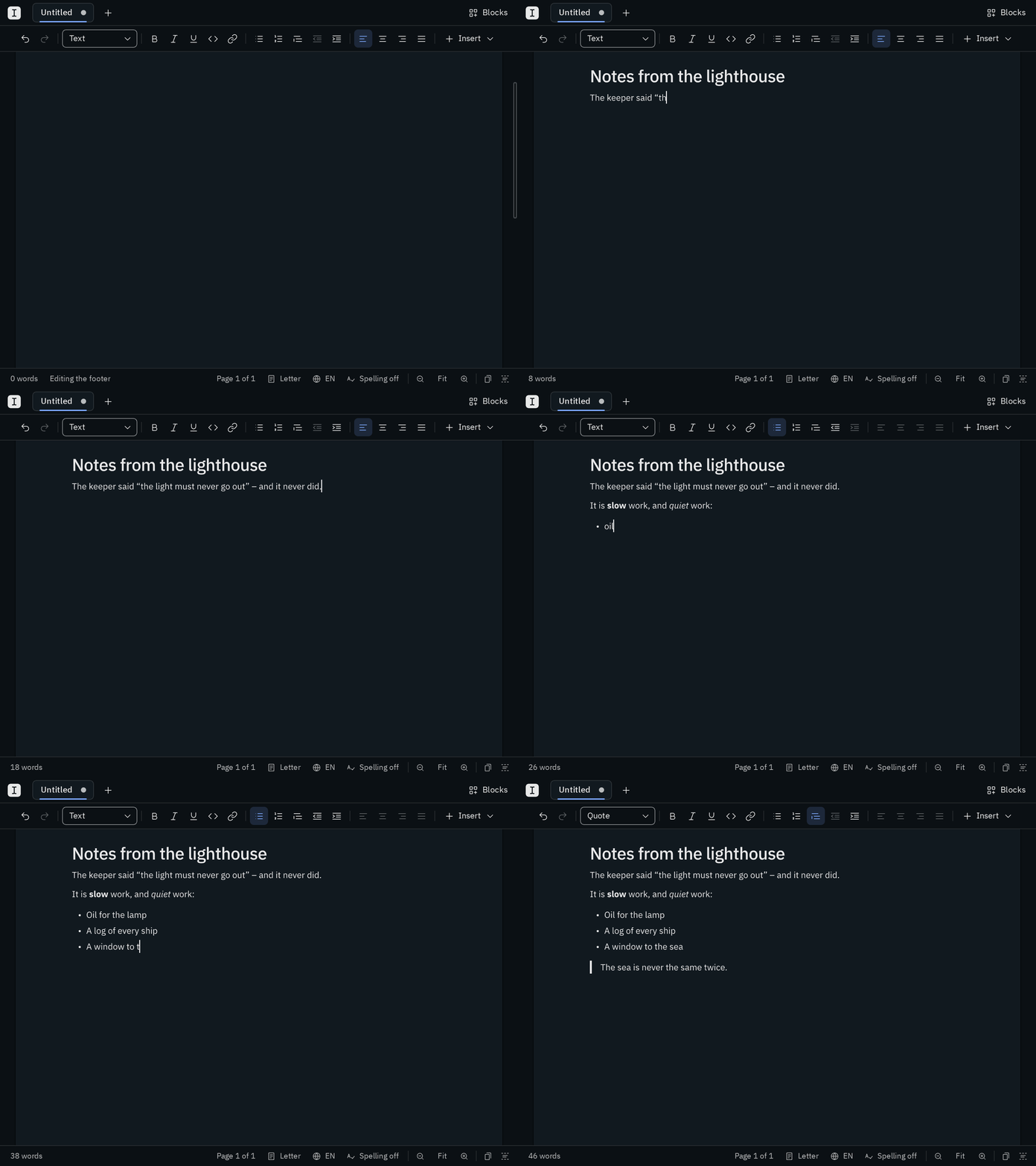
Everything Blank can do is also in the main menu behind the logo at the top left, which Mod K opens with a search: type a few letters of what you want and press Enter. To find and change words in your text, press Mod F (Find and replace).
The toolbar
The second row at the top of the window has everything to format your text, and shows how the text at the cursor is set: Bold lights up in bold text, the list you're in is pressed, and the style menu says Heading 2 while you're in one.
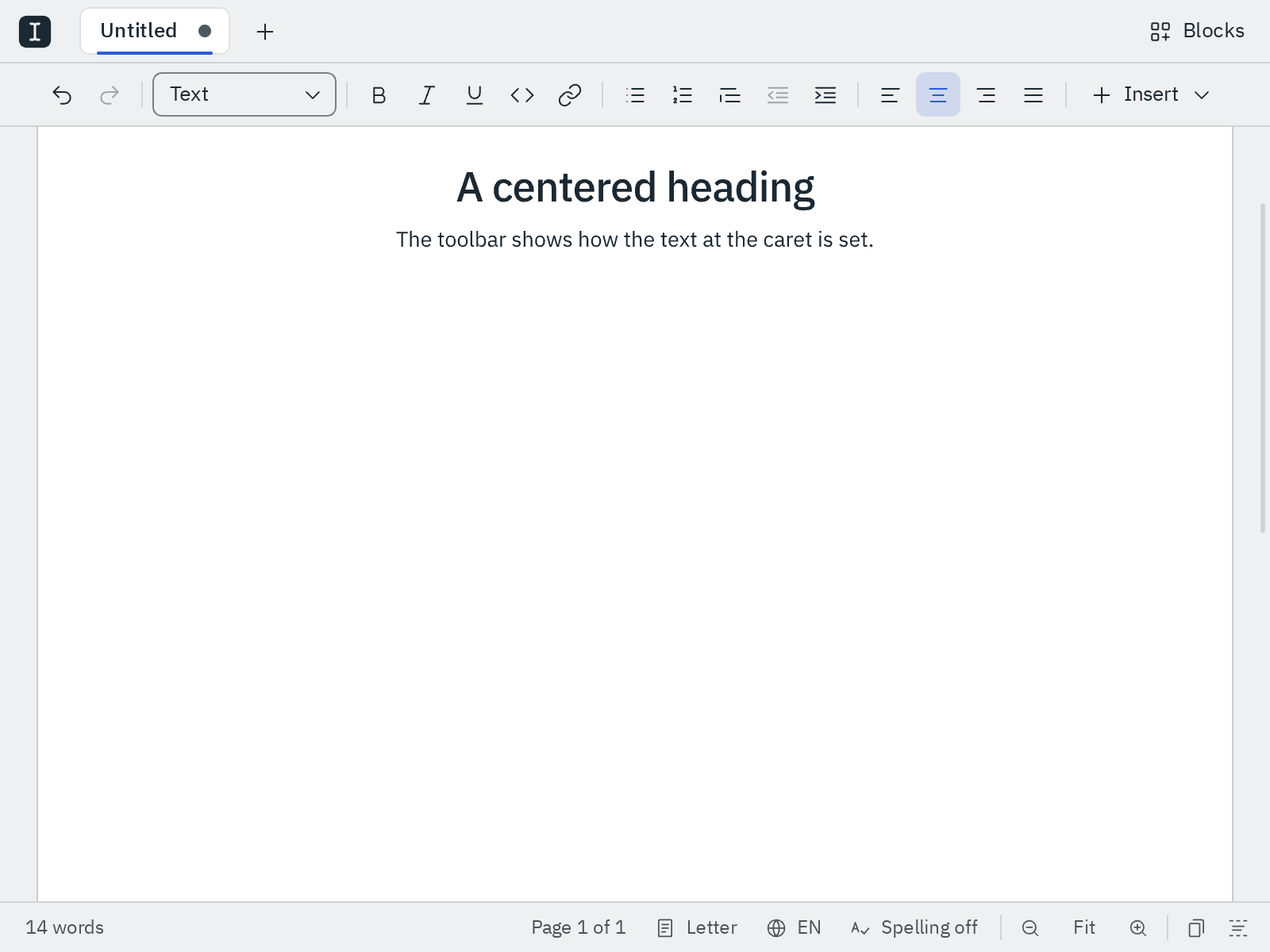
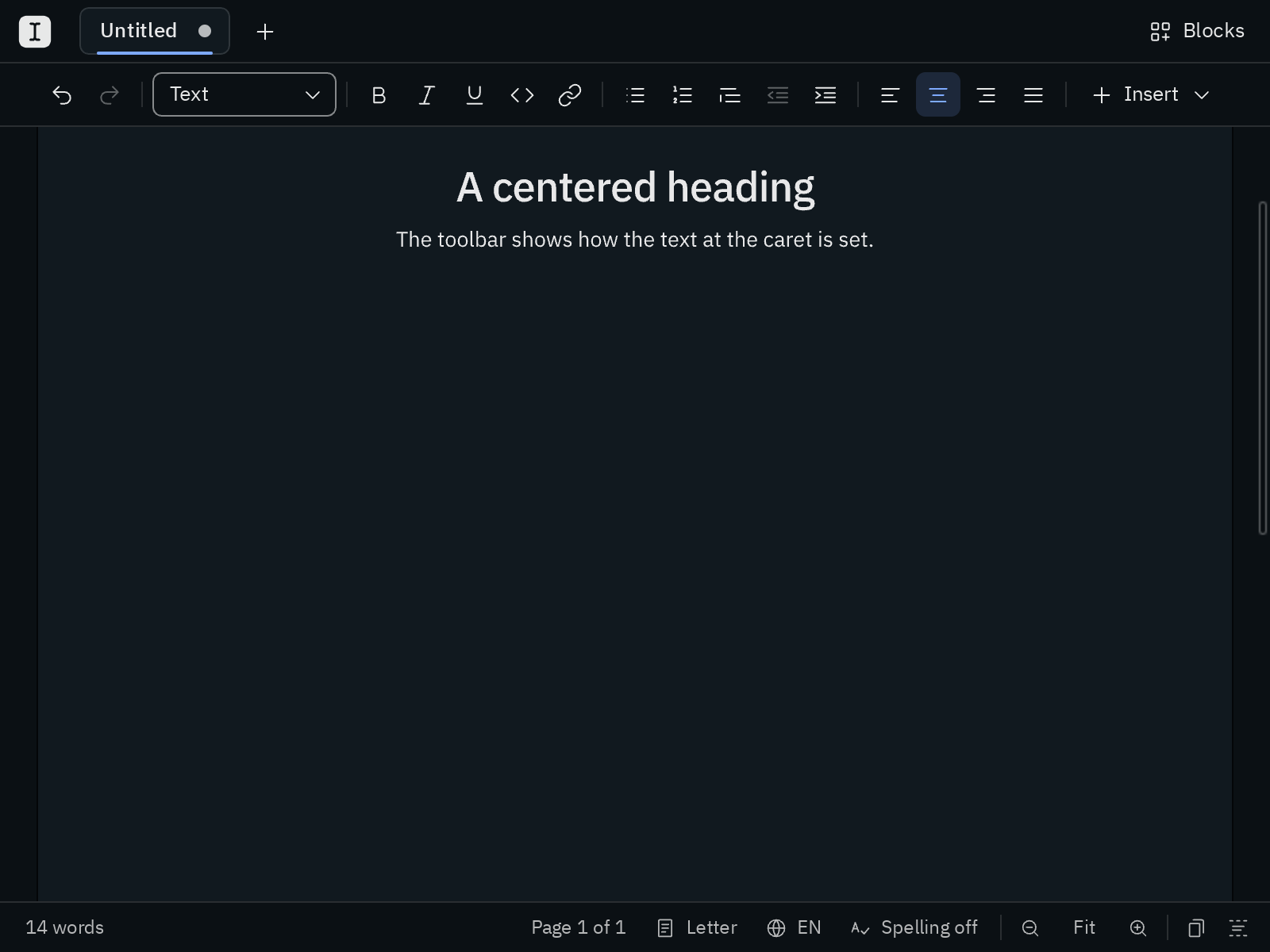
From left to right: undo and redo; the style menu (text, headings 1–6, quote and code block, each shown in its own style); bold, italic, underline, code and link; bulleted and numbered lists, quote, outdent and indent; the four alignments; and Insert for an image, a table, a horizontal line or a page break. Clicking a button leaves your cursor and selection where they were, so you can go on typing. Hover over a button to see its shortcut.
In a narrow window, what doesn't fit moves into the More button (⋯) at the end of the row: first Insert, then alignment, then indent and quote, then the lists.
Prefer the keyboard? Alt F10 takes you into the toolbar, and F6 gets there too, after the tabs. The arrow keys move from button to button, Home and End jump to the ends, Enter or Space presses a button, ↓ opens a menu, and Escape takes you back to your text, right where you were.
Bold, italic and underline
Mod B, Mod I and Mod U make the selected text bold, italic or underlined, and Mod E code. If only part of the selection has it, the whole selection gets it; press again to take it away. Lists and quotes work the same way: Mod 8, Mod 9 and Mod G turn a list or quote on, and off again when you're in one. In a numbered list, Mod 8 turns it into a bulleted one, and back with Mod 9.
Alignment
| Alignment | Shortcut |
|---|---|
| Align left | Mod Shift L |
| Center | Mod Shift E |
| Align right | Mod Shift R |
| Justify | Mod Shift J |
These align the paragraphs and headings you've selected, or the one the cursor is in; press the same shortcut again to go back to the left. Justified text runs straight down both edges, by widening the spaces between words; the last line of a paragraph stays as it is. A new paragraph you start with Enter keeps the alignment, as in Word.
In a table, Align left, Center and Align right align the selected columns. Lists, quotes and form fields always stay on the left. The pages, the PDF and Word documents show your alignment just as you set it. See Files & formats for how it's kept in the file.
Format as you type
At the start of an empty line, type one of these to turn the line into a block:
| Type at the start of a line | Then | You get |
|---|---|---|
# … ###### | Space | Heading 1–6 |
- * + | Space | Bullet list |
1. (any number) | Space | Numbered list |
> | Space | Blockquote |
--- *** ___ | Enter | Horizontal line |
+++ | Enter | Page break |
[toc] | Enter | Table of contents |
``` or ```lang | Enter | Code block |
```mermaid | Enter | Diagram |
| Name | Qty | | Enter | Table |
Changed your mind? Mod Z right away gives you back the line as you typed it.
Inline markdown works too: **bold**, *italic*, `code`, [title](url) and plain URLs become formatting once you finish the word. See Autocorrect for everything Blank corrects.
Code is set in IBM Plex Mono. Mod + Click on a link opens it in your browser. Emoji appear in black and white, in the colour of your text. Chinese, Japanese, Korean and other scripts use the fonts your computer has for them. Whatever you write, it looks on paper just as it does on the screen, and a word too long for its line, like a long web address, simply carries on to the next one.
Lists
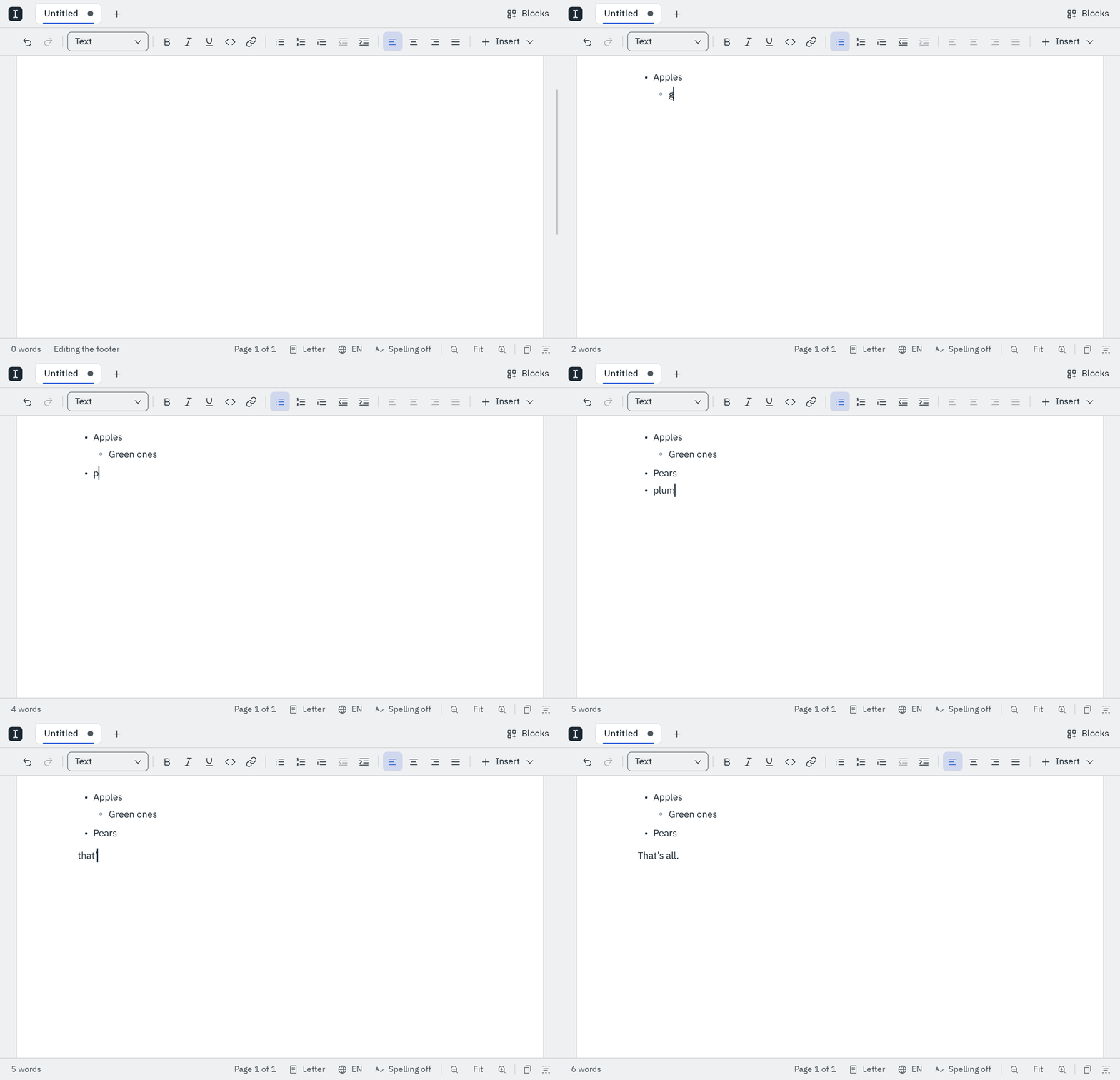
Type - or 1. and a space to start a list, or press Mod 8 or Mod 9. Then:
- Enter starts the next item. Enter on an empty item ends the list, so Enter twice gets you out of it, also from a list inside another.
- Tab moves an item a level in, under the item above, wherever your cursor is in it. Shift Tab moves it a level out again, and out of the list on its first level. Select several items to move them together. The first item of a list has no item above to go under, so it stays where it is.
- Backspace on an empty item deletes it, and the cursor goes to the end of the item above. At the start of an item with text, it moves the item a level out, out of the list on its first level, and the next Backspace joins it to the line above.
Leaving a list in the middle with Enter, or taking an item out, splits it in two. The part after it starts again at 1. Join them back by pressing Backspace at the start of the line between them.
Tabs in text
Tab puts a tab where your cursor is, as in a word processor, and the text after it moves on to the next tab stop. The stops are half an inch (about 1.27 cm) apart. Select several lines, or a whole one, and Tab puts a tab at the start of each, to indent them. Shift Tab takes one away again, wherever your cursor is on the line. The pages, the PDF and Word documents put your tabs on the same stops, and Word documents bring theirs along when you import them. In the markdown file, a tab at the start or the end of a line is written as 	, which other markdown apps read as a tab too.
Tab never takes you out of your text. To get to the tabs and the toolbar with the keyboard, press F6.
Code blocks
Type ``` and Enter at the start of a line to start a code block. In it, Tab and Shift Tab work as in a code editor: select some lines and Tab indents all of them by 4 spaces, Shift Tab outdents them, and the same lines stay selected, so you can press again to go further. Each line moves to the next or the previous step of 4, so a line indented by 6 spaces outdents to 4, not 2, and lines without indentation stay where they are. Without a selection, Tab puts in spaces up to the next step, and Shift Tab outdents the line the cursor is on. Code indented with tabs keeps its tabs. Each press is one step for Mod Z. Prefer 2 spaces? Set it in blank.json.
Blocks
The Blocks pane (Mod Alt B) puts a table of contents, a form such as a recipe, or a drawing into your document: click a tile, or drag it between two paragraphs. See Blocks.
Tables
Press Mod T, pick a size with the arrow keys and press Enter. Tab takes you from cell to cell and adds a row at the end. Tables has everything about making, filling and saving them.
Images
Press Mod Alt I to add an image where the cursor is. In the dialog, press Choose file… (Tab gets you there) to pick a picture from your computer, give it a short description and press Enter. Blank puts the picture into the document itself, so your markdown file stays a single file you can move, copy and send without losing images. Large pictures are scaled down to a size that still prints well.
Instead of choosing a file, you can also type an address into the dialog, or type  and a space right in the text:
- a web address, like
https://example.com/map.png, - a file next to your document, like
images/chart.png, which appears once the document has been saved, since Blank needs to know its folder, - any file on your computer, like
/home/me/logo.png.
These images stay where they are and the document links to them.
To change or remove an image, put the cursor right before or after it and press Mod Alt I again.
Images are as wide as they are in the file, up to the width of the page, and PDFs and Word documents include them at that size. To give one another width, choose it under Width in the dialog: Fit keeps its own size, and half, three quarters or all of the text's width make it that wide, larger too. Center or right-align it as you align its paragraph.
A sized image is written as HTML in your markdown file, <img src="cat.png" alt="A cat" width="50%">, which GitHub, GitLab, Obsidian and Typora show at that width as well; an image without a width stays . Its width comes along into Word and back.
Tabs
Keep several documents open at once, each in a tab at the top of the window. Mod N or + starts a new one, and a double-click on the empty part of the row does too. Every file you open gets a tab of its own, next to the one you're in; open a file that's already open and Blank just takes you to its tab.
- Switch with
CtrlTabandCtrlShiftTab, orCtrlPage DownandCtrlPage Up, or click a tab. Each tab keeps its own place in the text and its own undo. - Close with
ModW, the × on a tab or a middle click. Changes you haven't saved show as a dot instead of the ×, and Blank asks whether to save them before the tab closes.ModShiftTopens the file you closed last again. - Reorder by dragging a tab, or with
CtrlShiftPage UpandPage Down. - Right-click a tab to close the others or those to its right, to save it, or to copy its file's path.
- Get there from the keyboard with
F6, which takes you from the text to the tabs, then to the toolbar, and back. The arrow keys move between tabs,Entershows one,Deletecloses it andEsctakes you back to the text.
The window is named after the tab you're in, and pointing at a tab shows where its file is.
Blank remembers your documents
Blank keeps what you write as you go, at least once a second and once more when you close the window, and restores every tab on the next start, unsaved changes included, together with the theme and the language. So you can close the window mid-thought without saving, and pick up right where you left off. Closing the window never asks about saving; only closing a tab does.
A tab whose file you saved shows the file as it is on disk now, in case it changed meanwhile.
Save, open and export
Your documents are plain markdown files: Mod S saves the tab you're in, Mod O opens one or several files, also Word documents. To share a piece, export it as a PDF with Mod Alt P or as a Word document with Mod Alt W. Files & formats has everything about PDF and Word.
The status bar
The top of the window shows the open file, Untitled, or the Word document an untitled document was imported from.
The bar at the bottom shows where you are and what's switched on. Click any item in it; rest the mouse on one to see its name and shortcut.
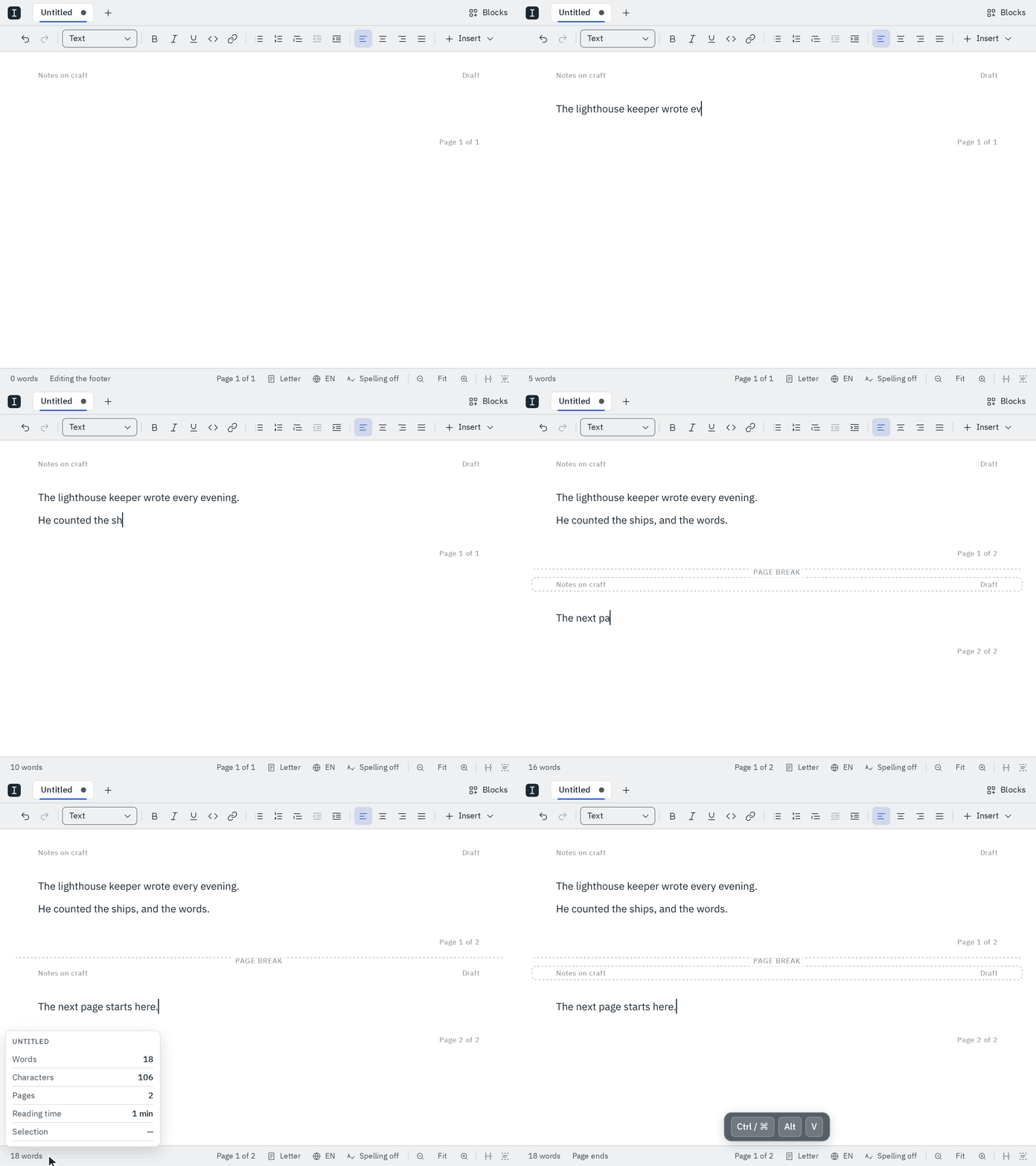
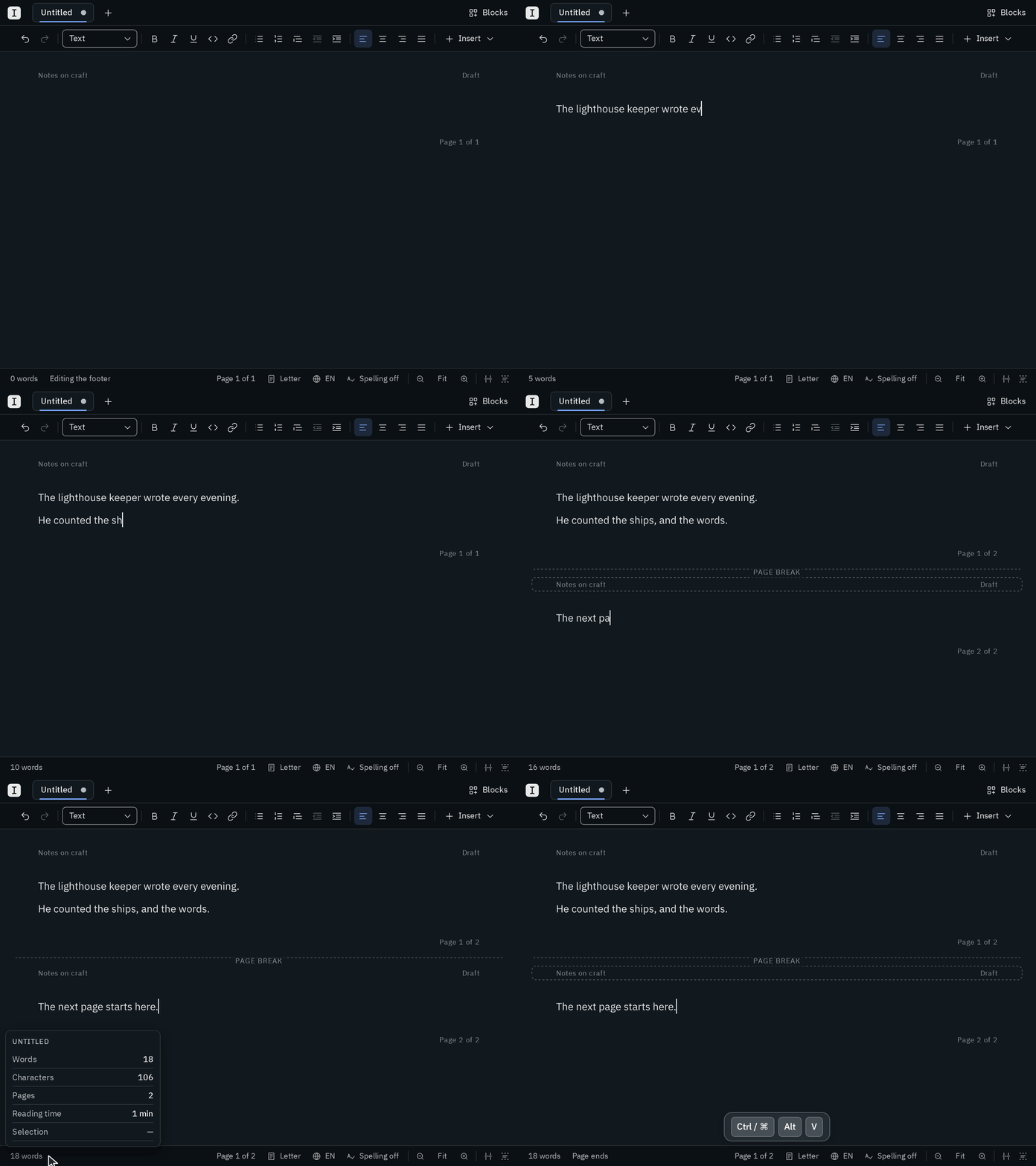
| Item | What it shows | Click it to | Keys |
|---|---|---|---|
| 348 words | how many words the document has | see the details: characters, pages, reading time and the words you selected. Resting the mouse on it opens them too | Mod Alt C |
| Page 2 of 5 | the page you're looking at | jump to another page, listed with the first heading on each | |
| A4 | the paper | open the page setup | Mod Alt U |
| EN | the language | choose another one | Mod Alt L |
| Spelling | whether spell check is on (Spelling off when it isn't) | turn spell check on or off | Mod Alt S |
| ‹ › | while spell check is on and the window is wide enough | go to the previous or next misspelled word | Mod Alt Shift N, Mod Alt N |
| − Fit + | the zoom of the pages; − and + give way on a narrow window | zoom out or in; a click on the zoom fits the pages to the window again | Mod -, Mod = |
| the view | pages or page ends, whichever you're in | switch to the other | Mod Alt V |
| focus mode | whether focus mode is on | turn it on or off | Mod Shift F |
Next to the word count, the bar tells you for a moment what just happened, like 2 rows added, and screen readers read it out. The details of the word count close as soon as you type on; with Mod Alt C, screen readers read them out as well.
Focus mode
When you want only the page, turn on focus mode with Mod Shift F or the last button of the status bar. Nothing changes at first. As soon as you type, the tabs, the toolbar, the panes, the outline and the status bar fade out, slowly, and the page stays exactly where it was. Move the mouse and they're back at once.
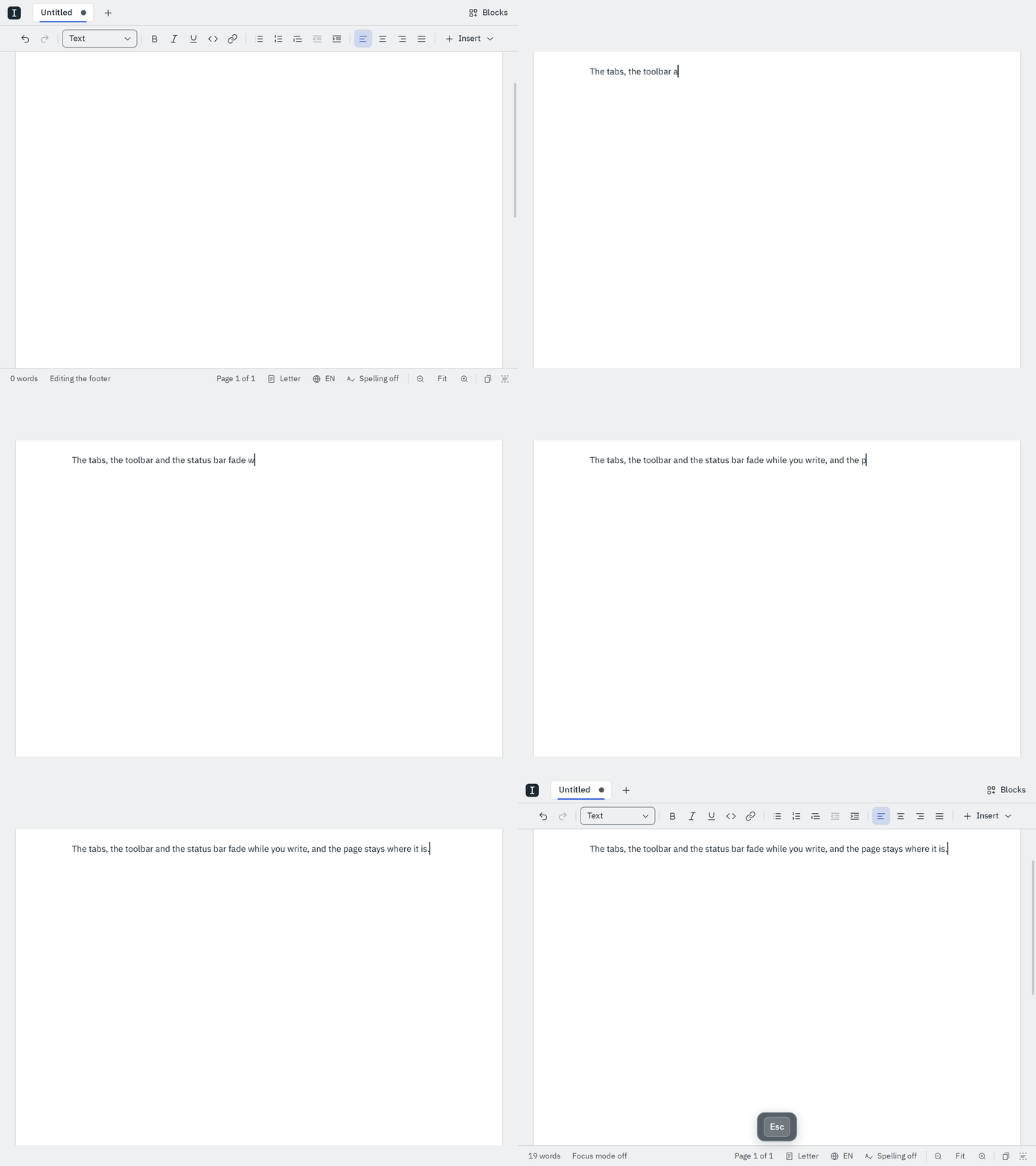
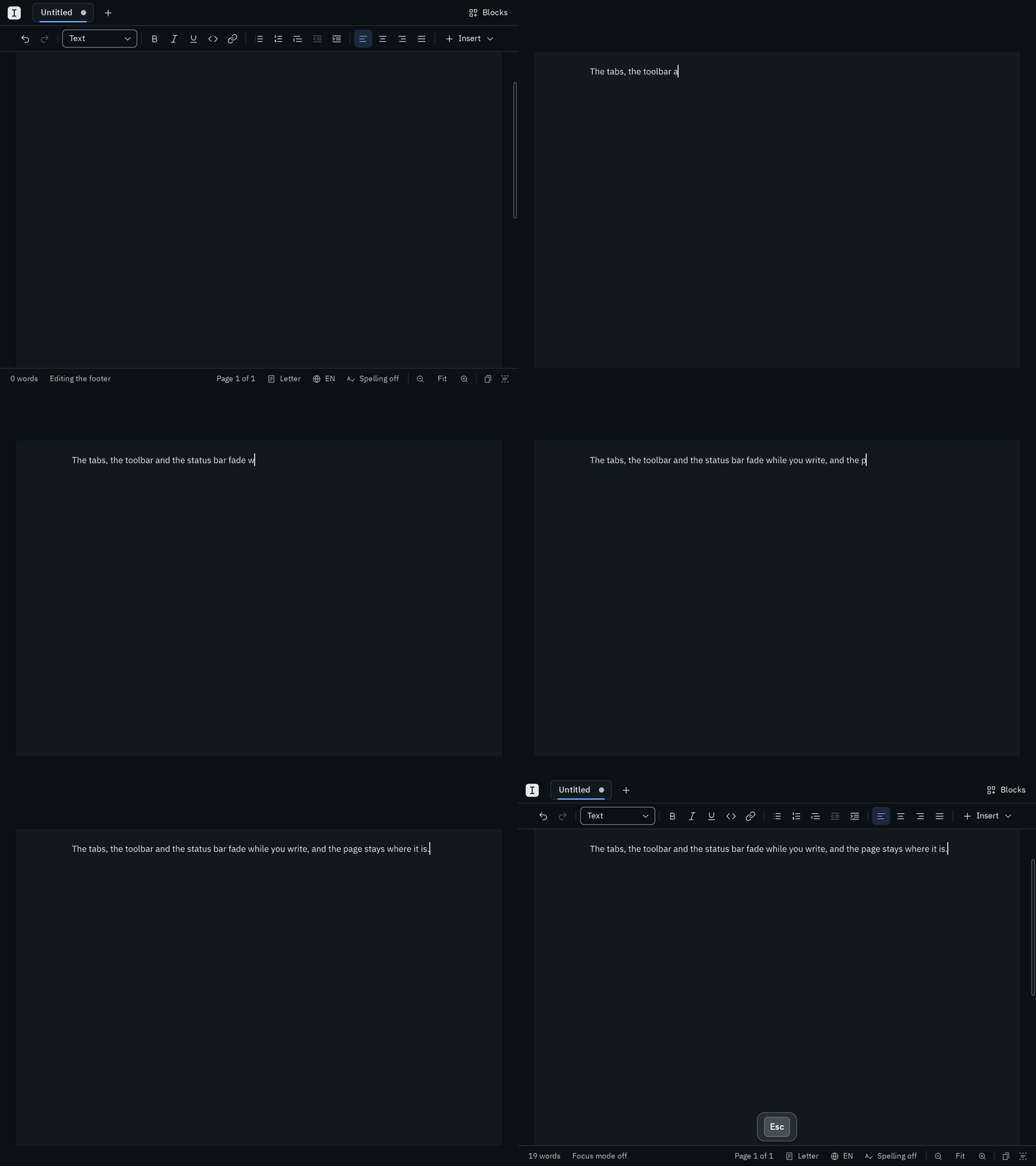
- The bars also fade once the mouse has rested for 3 seconds. Choose 10 seconds, or only when typing, in the settings.
- They never fade while the mouse is on one of them, or while a menu, a dialog or a header or footer you're editing is open. While they're faded, the margins don't offer + Header or + Footer either.
- Every shortcut still works while they're hidden, and
F6brings them back to move through them with the keyboard. Escleaves focus mode, unless something else is open thatEsccloses first.