
Find and replace
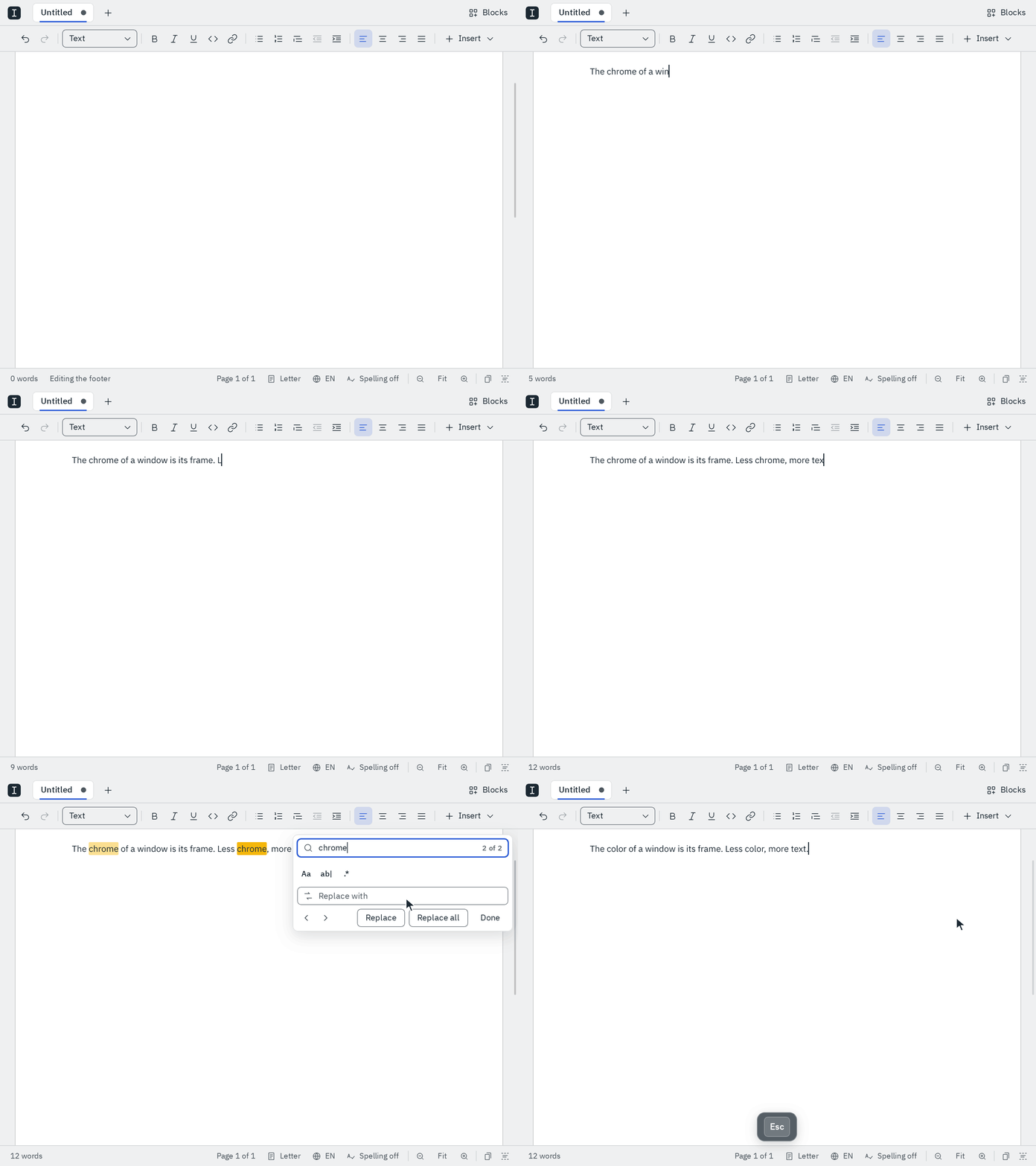
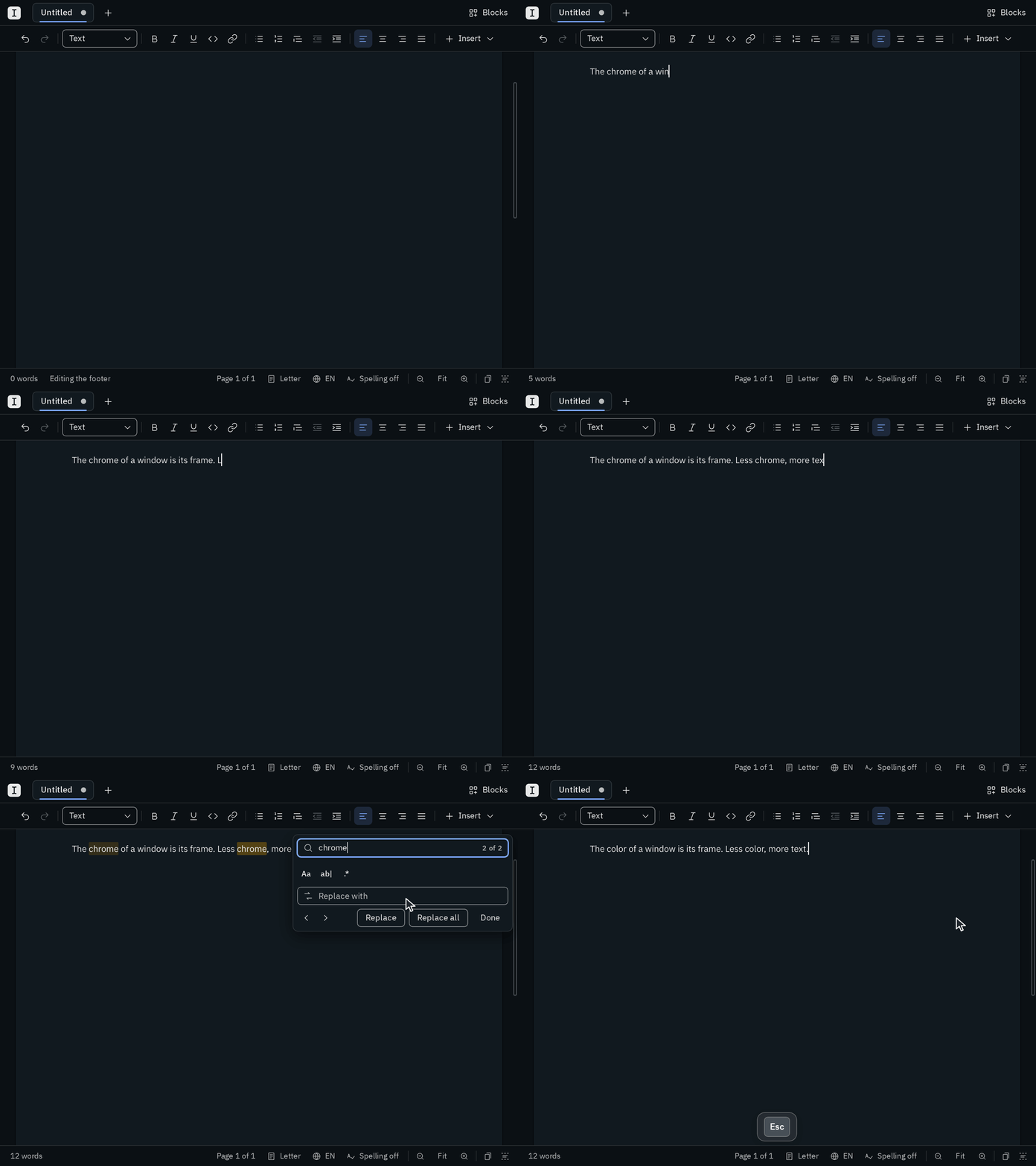
Mod F opens a small panel at the top right of your pages. Type what you're looking for: Blank highlights every match on the pages and shows where you are, like 3 of 12. The panel stays open while you write, so you can look, change something in the text and look on.
Go through the matches
Enterin the find field goes to the next match,ShiftEnterto the previous one. The arrows below the fields do the same.F3andShiftF3work too while the panel is open, wherever you are but in a dialog or a menu.- The pages scroll to show the match you're at, which is highlighted more strongly than the others.
If you selected a word or a few words before pressing Mod F, Blank looks for them right away. Otherwise the field shows what you looked for last in that document, selected, so you can type over it. Each tab remembers its own search.
Esc in the panel closes it and selects the match you were at, so you can go on typing there; in your text, Esc just closes the panel. Done does the same with the mouse.
Replace
Type the new text in the second field. Without a match, the arrows, Replace and Replace all are greyed out. Replace, or Enter in that field, changes the match you're at and moves on to the next one; Replace all changes every match in the document at once, and says how many it changed. Replace all is one step: Mod Z undoes all of it.
Find and replace looks in your text: paragraphs, headings, lists, quotes, table cells and code. It leaves the document properties at the top of the file alone, and it doesn't search table captions or headers and footers yet.
Options
Three buttons under the find field change how it looks. Blank remembers them until you quit it.
- Aa, match case: Blank finds only Blank, not blank. Without it, upper and lower case don't matter.
- ab|, whole word: the finds the, but not theme or bathe.
- .*, regular expression: the field takes a JavaScript regular expression. If Blank can't read it, the panel says why.
A regular expression runs as you type, on every line: a pattern that takes long, like (a+)+$ on a long run of a's, can hold Blank up.
With a regular expression, the replacement can use what it matched: $& is the whole match, $1, $2 … are its groups in parentheses, and $<name> a named group. For example:
| Find | Replace with | Turns | Into |
|---|---|---|---|
(\w+)@(\w+) | $1 at $2 | ann@example | ann at example |
(\d+)-(\d+) | $1–$2 | pages 10-12 | pages 10–12 |
\s+$ | (nothing) | spaces at a line's end | gone |