
Pages
Your PDF and Word documents come out on the paper of your region, A4 or Letter, with generous margins of 2.5 cm. Most documents never need more than that. When one does, the page setup is a click or a shortcut away.
Your pages on the screen
Blank shows your text the way it prints: every line and every page ends on the screen exactly where it ends in the PDF. (A Word document is laid out by Word, so its lines can end elsewhere.) There are two ways to look at it, and Mod Alt V switches between them, keeping your place:
- Page ends (where Blank starts): one calm column of text, as wide as it is on the paper. Where one page ends and the next begins, a dashed line shows the page's number and footer, and the header of the page that follows. The first page's header sits above your text, and the last page's footer below it. A new document is just that: an empty page and your caret.
- Pages: the sheets themselves, one below the other, with their margins, headers, footers and page numbers in place.
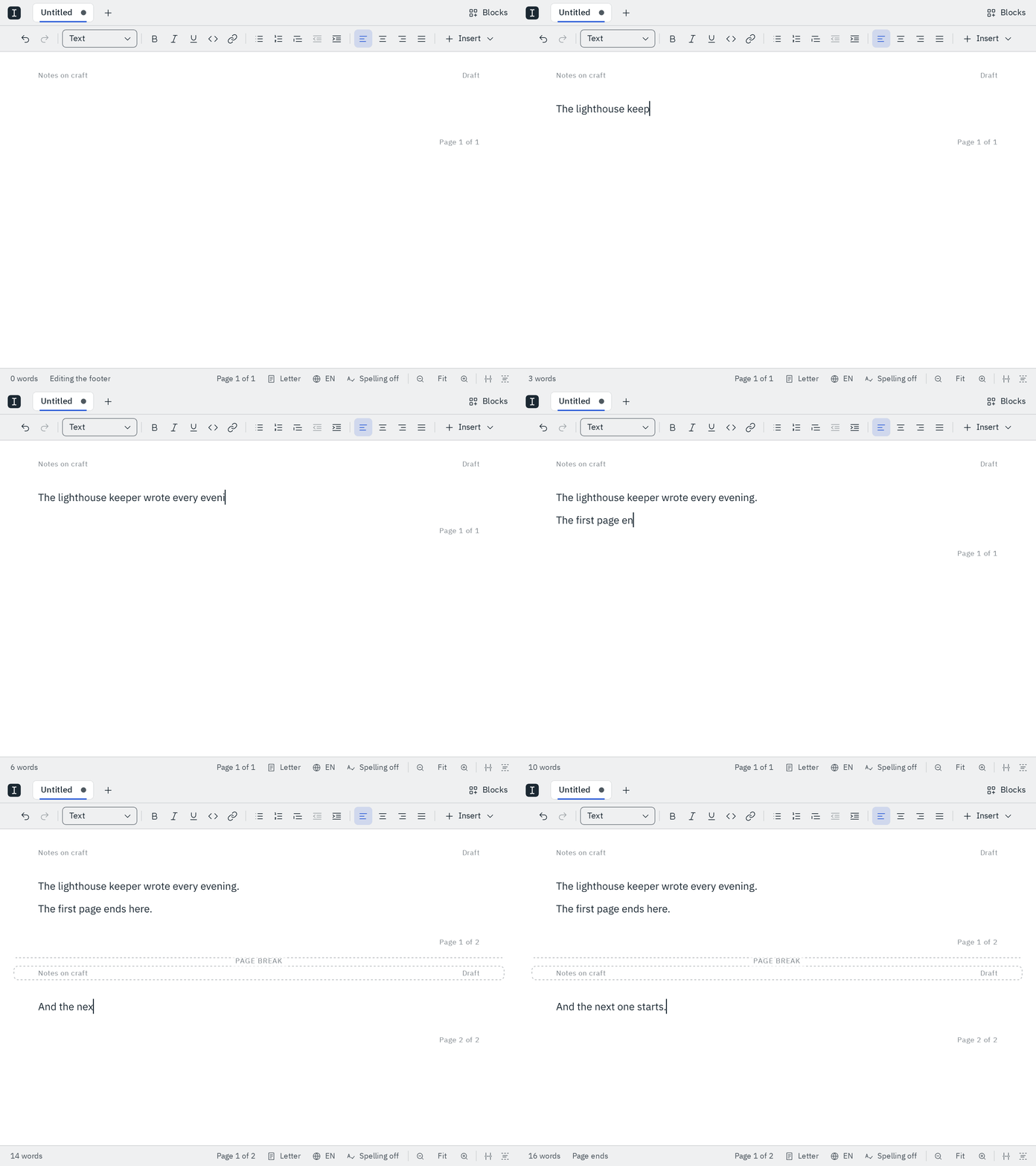
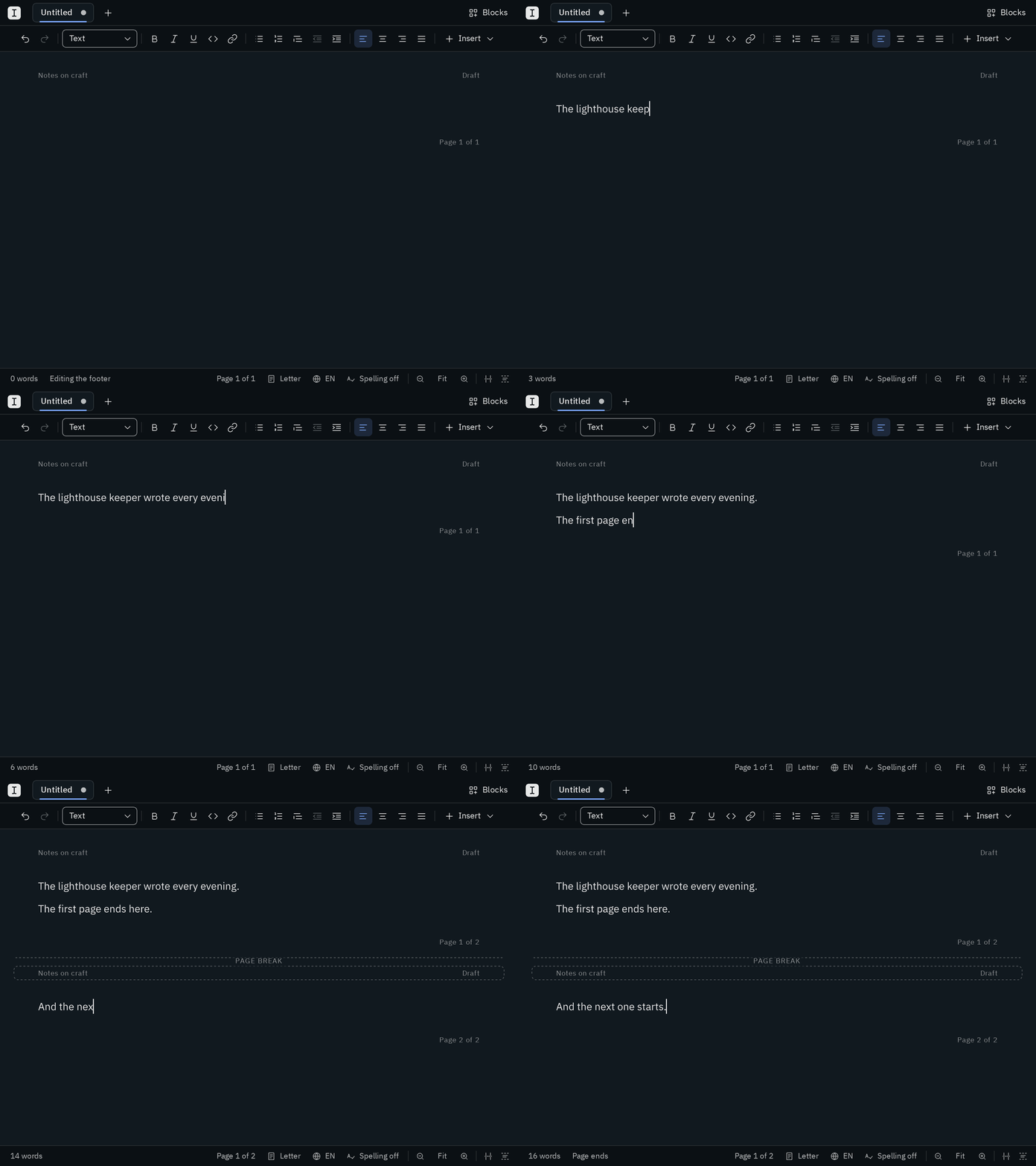
Blank remembers your choice. The button at the right end of the bar at the bottom switches between the two views too: its icon shows the view you're in. Next to it, the bar tells you which page you're looking at, like Page 3 of 12, and counts along as you scroll; click it to jump to another page, listed with the first heading on each. Page Up and Page Down move a screen at a time, and dragging past the top or bottom of the window scrolls along.
Zoom
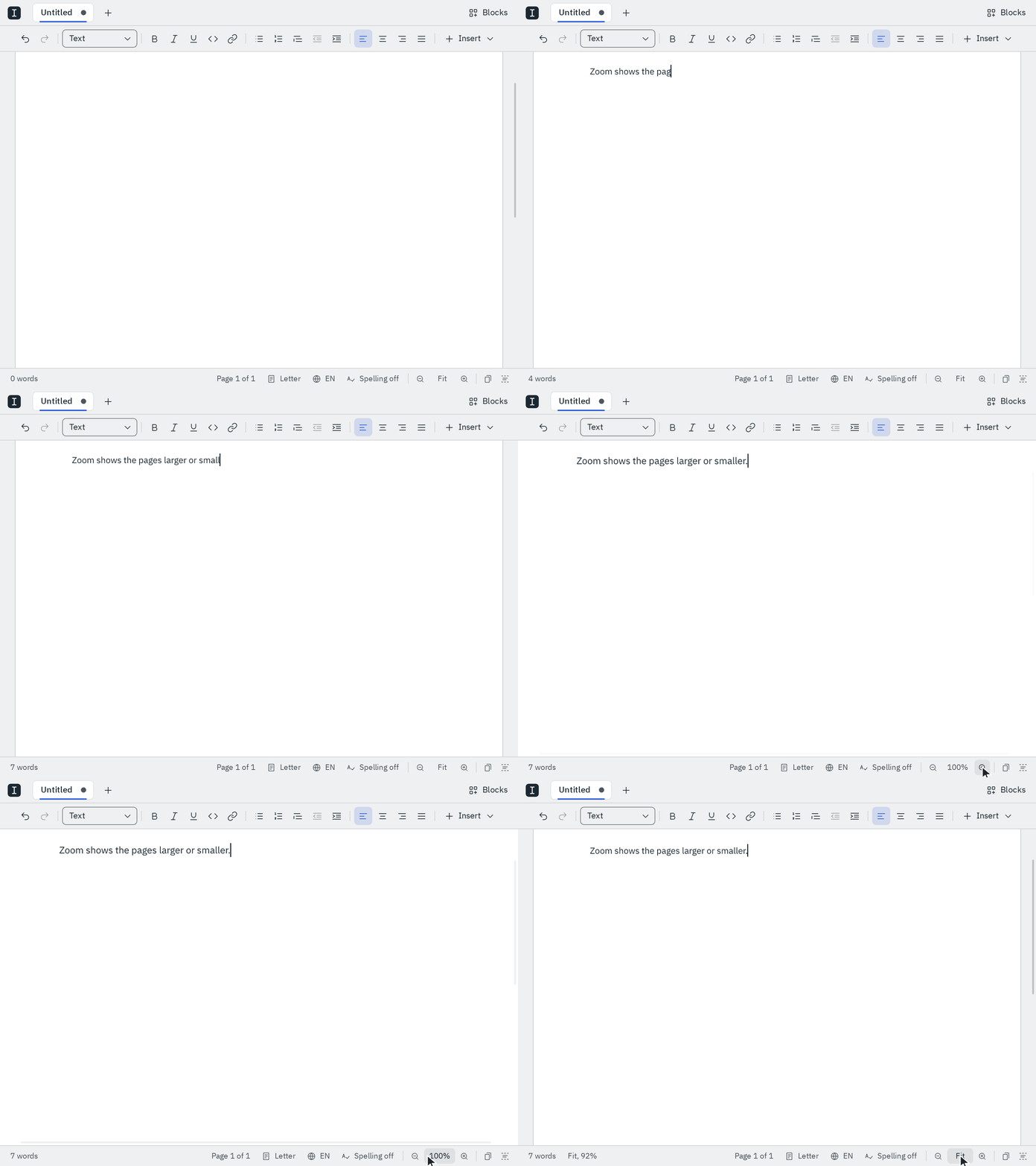
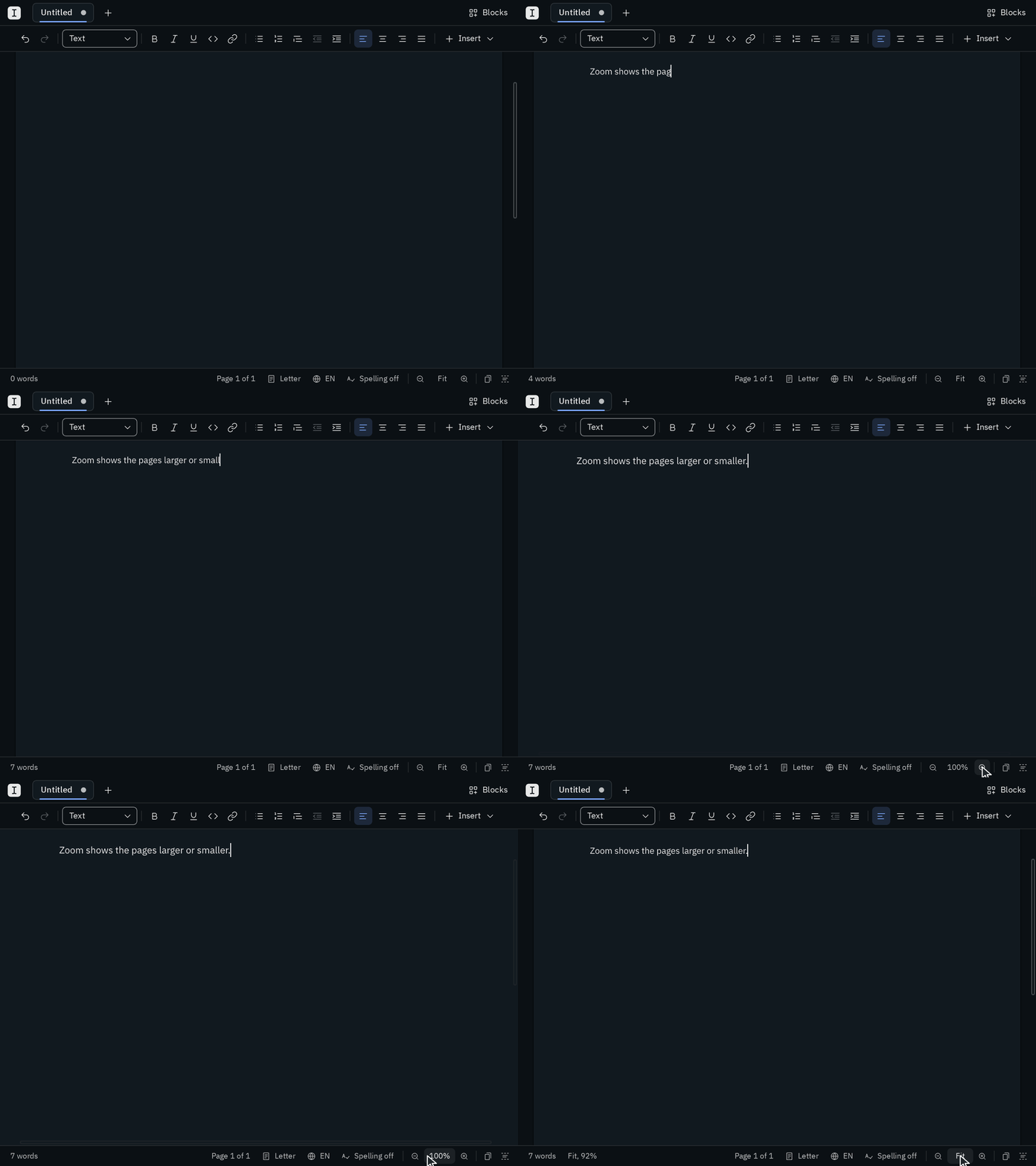
At first, Blank fits your pages to the window: as wide as it allows, at most the size they print at (in page ends, the size of your text in the editor, a little larger). To see them larger or smaller, press Mod = (or Mod +) and Mod -, or hold Ctrl and turn the mouse wheel. The zoom goes in steps from 50% to 200%, where 100% is the size the pages print at, in both views. The spot under the pointer stays where it is while you zoom with the wheel, and with the keys, your cursor does.
The bar at the bottom shows the zoom next to the view button, between − and +. A click on it fits the pages to the window again; with Fit, its tooltip says the size that gives, like Fit to window (87%). A page wider than the window scrolls sideways. Blank remembers the zoom for the next time you open it.
Only the pages zoom: the bars, menus and dialogs keep their size.
Find your way with the outline
Once your document has two headings, a short dash for each of them sits at the right edge of the window, longer for a heading 1 and shorter for the levels below. The dash of the section you're reading is in your accent color.
Point at the dashes to see all your headings, and click one to scroll straight to it. In the list, a short line in your accent color marks where you are. Your cursor stays where you were writing, so you can look something up and keep typing right away.
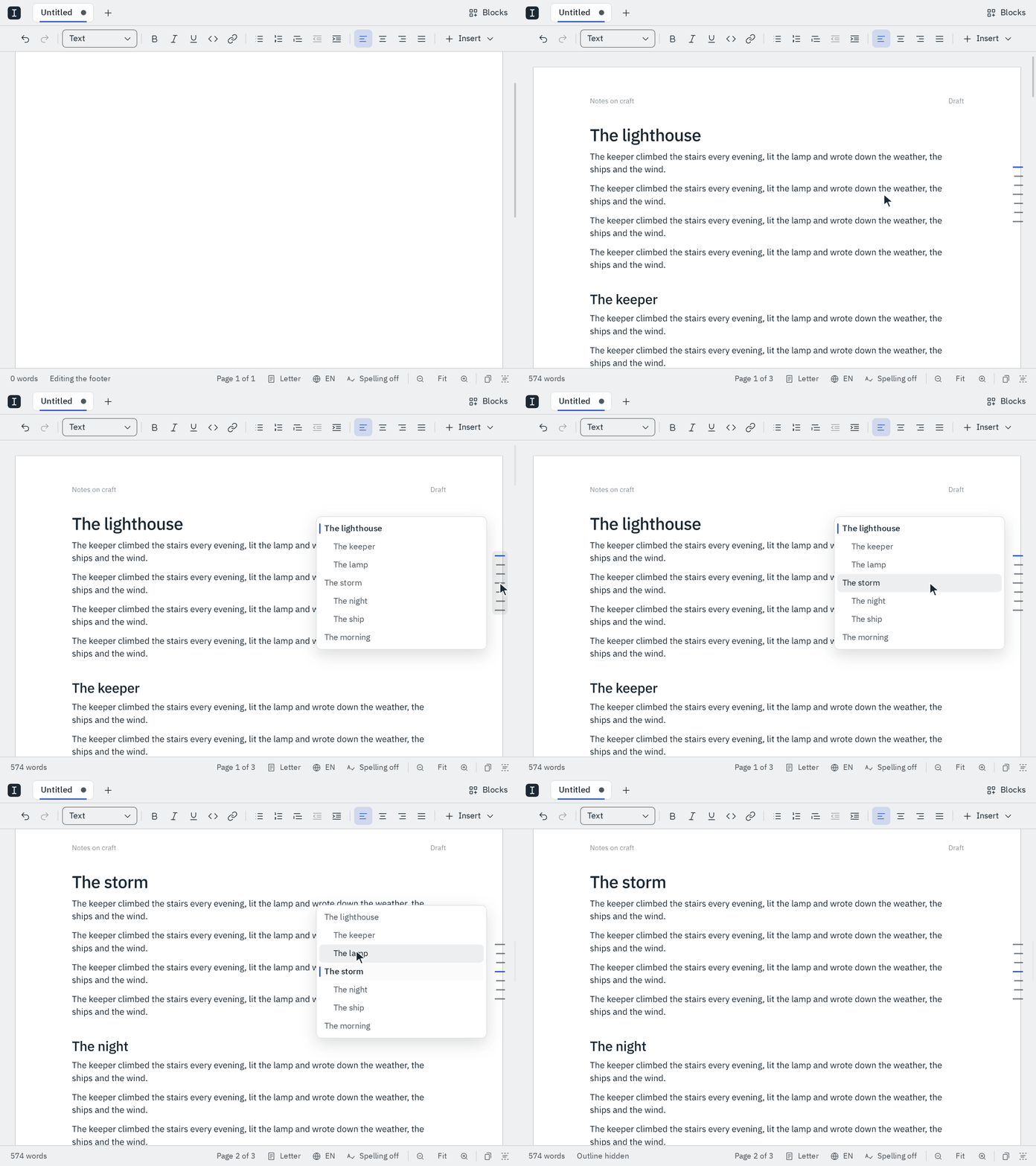
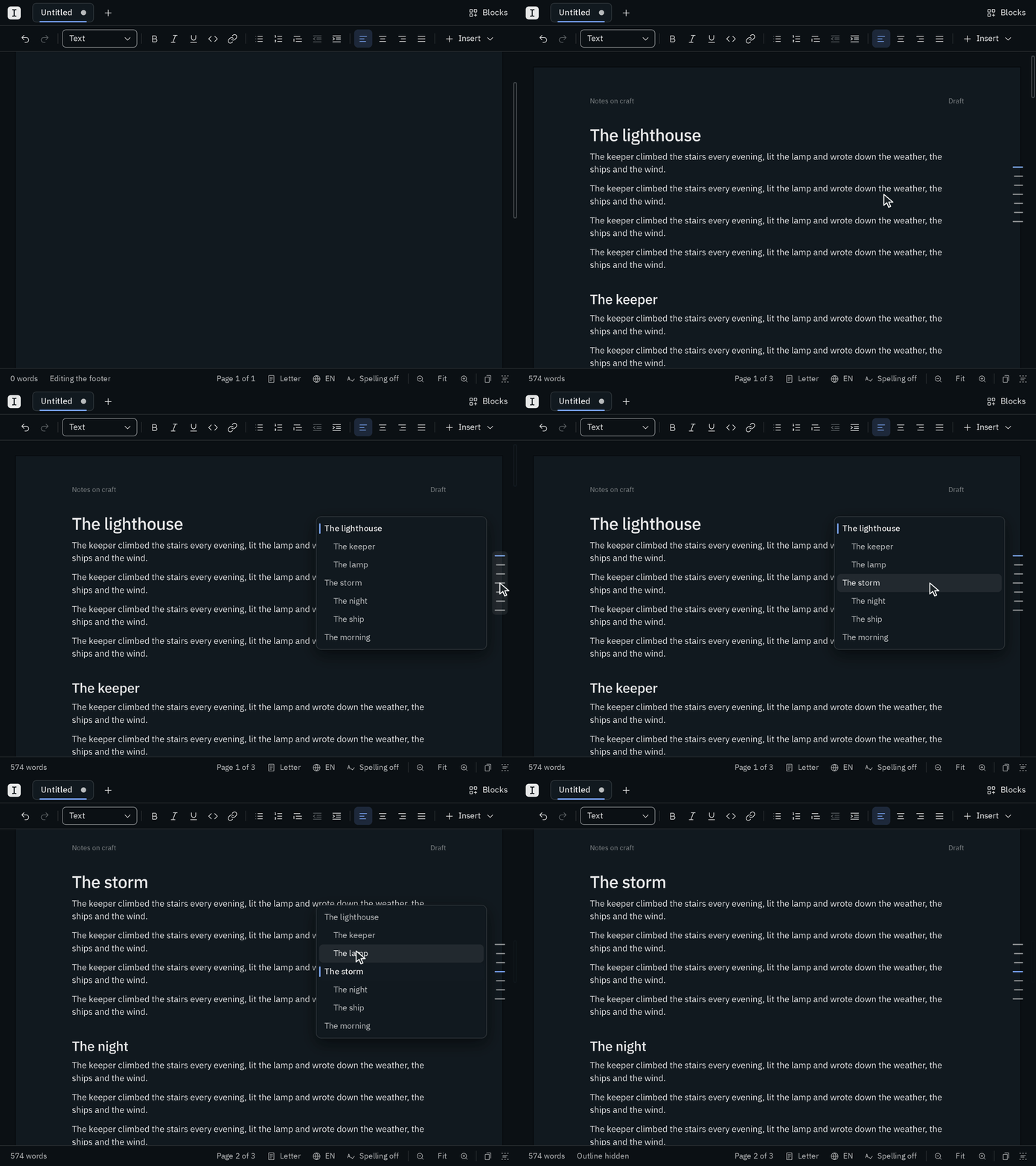
To keep the outline open, click the dashes or press Mod Alt O. On a window at least 1000 pixels wide, the list stays beside your pages, and they move over a little if they need the room. On a smaller window it floats over the pages until you click a heading or somewhere else. Mod Alt O or the × at the top of the list puts it away again, and Blank remembers whether you keep it open. Rest the pointer on the dashes or the × to see the shortcut.
Page setup
Click the paper in the bar at the bottom (e.g. A4), press Mod Alt U, or choose Page setup… from the menu (right-click or Shift F10).
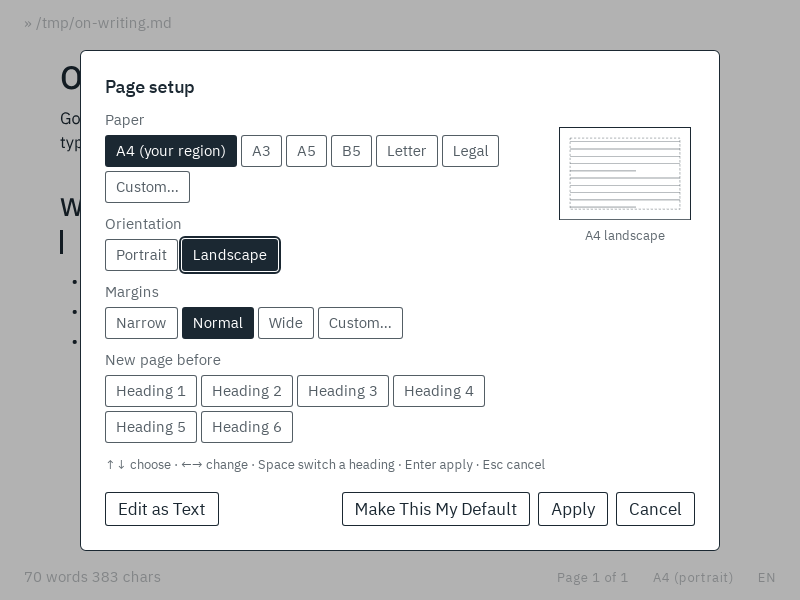
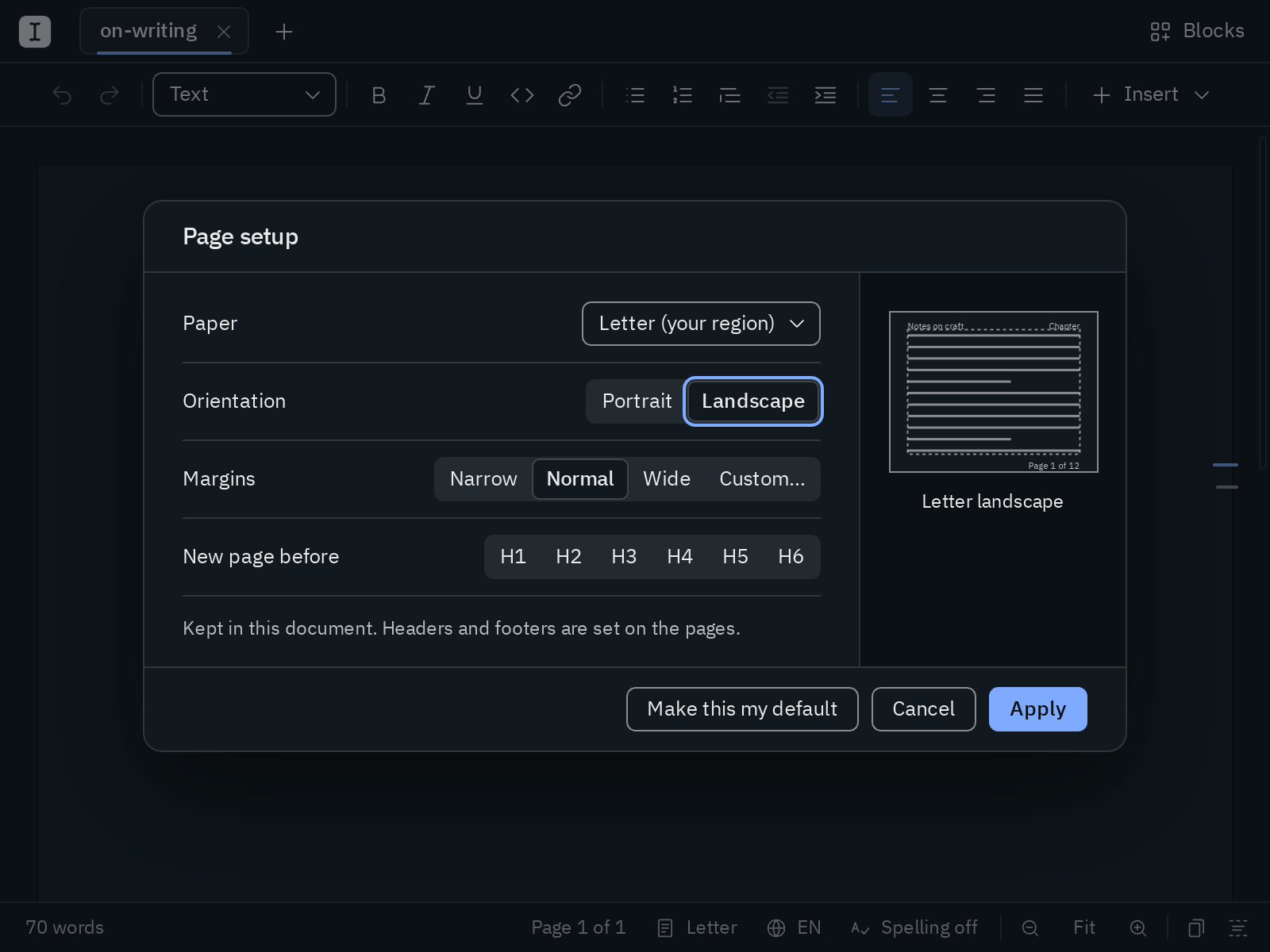
| Setting | Choices |
|---|---|
| Paper | the paper of your region, A3, A4, A5, B5, Letter, Legal, or any size |
| Orientation | portrait or landscape |
| Margins | narrow (1.27 cm), normal (2.5 cm), wide (3.5 cm), or your own |
| New page before | H1 to H6: the headings that start a new page |
Pick the paper from its list, and click the orientation and margins you want. The picture beside them follows every change, so you see your page before you apply it, and Apply puts it on your document.
For a size or margins of your own, choose Custom… and type them in the fields that open below. The paper is in millimeters, or in inches where Letter paper is used, and the margins in centimeters or inches. You can also write the unit, like 25mm or 1in. Type a width larger than the height, and the page turns to landscape by itself. If something can't work, say margins that leave no room for your text, the dialog tells you right below and waits until it's fixed.
Make this my default keeps the setup for new documents and every document without its own.
Changed your mind? Mod Z undoes the whole page setup at once.
It all works from the keyboard too:
↑↓move between the settings and fields.←→change a setting, also the paper.HomeandEndjump to a setting's first or last choice.Spaceturns a heading on or off. On the paper,Space,EnterorAlt↓open its list.Enterapplies, andEscleaves everything as it was.
Page numbers, headers and footers
Point at the bottom margin of a page, or just below the last page, and click + Footer. The footer opens right where it prints: three places in the margin, on the left, in the center and on the right, and a strip beside them. Everything else steps back while you edit. Click Page number, pick how it reads, and click Done: every page of your PDF and Word document now has its number at the bottom. A header works the same from the top margin with + Header.
The fast way is the keyboard: Mod Alt F opens the footer and Mod Alt H the header, on the page you're looking at.
Click a place and type, or put something in with the strip's buttons:
- Page number puts in the number of the page. Its menu offers 1, Page 1, 1 of 2 and Page 1 of 2, numbers in the style 1, 2, 3, i, ii, iii or I, II, III, and Start at… for the number of the first page, e.g. 0 to leave a title page uncounted.
- Title and Author put in the document's title and author, which follow the properties. Without a title, the first heading is the title.
- Chapter puts in the chapter a page belongs to: the first heading 1 on the page, or else the last one before it. A running head, as in books.
- Date puts in the date of the export, and File the name of the file.
In a place, they show by their name, like Page or Title, and your pages show what they stand for. Remove clears the header or footer from every page.
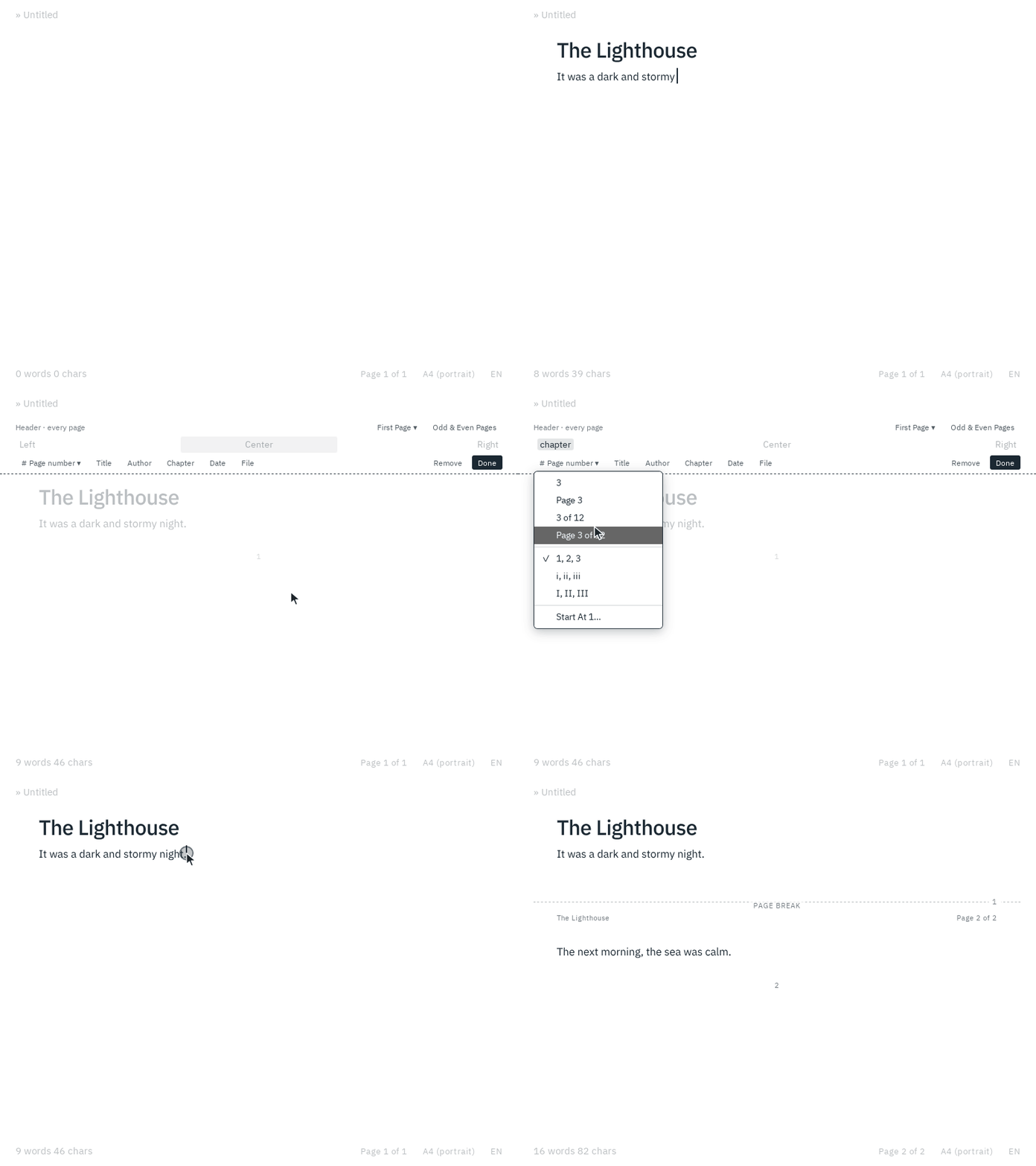
Tab moves to the next place and on to the strip's buttons. Enter, Esc or a click anywhere in your text is done. Your pages show what they carry: in Pages on every sheet, and in Page ends above the first page, between the pages and below the last one. Click a header or footer there to change it; on a sheet, anywhere in its top or bottom margin does. Mod Z in your text undoes the whole change.
When a placeholder has nothing to put in yet, say Author while the document has no author, or Chapter before the first heading 1, your pages show its name there in faint italics, so you can still see the header or footer and click it. Only the screen shows these names: your PDF and Word document leave the place empty until there is something to put in. And if the header or footer you're done with shows nothing at all on your page yet, the bottom bar tells you why, say that no author is set, and how to set one.
The first page and even pages
In the strip, First page chooses what the first page has: The same as the others, None, e.g. for a title page, or Its own, e.g. a letterhead with your address on the first page and just the page number after it.
Switch on Odd and even pages differ to give the left and right pages of a book their own header and footer. Odd and even pages then have two headers and two footers, each kept on its own. The even pages start as the odd ones mirrored, so the page numbers sit on the outside. Changed the odd pages later? Mirror the odd pages copies them to the even pages again, left and right swapped. As in Word, a page counts as even by the number it shows.
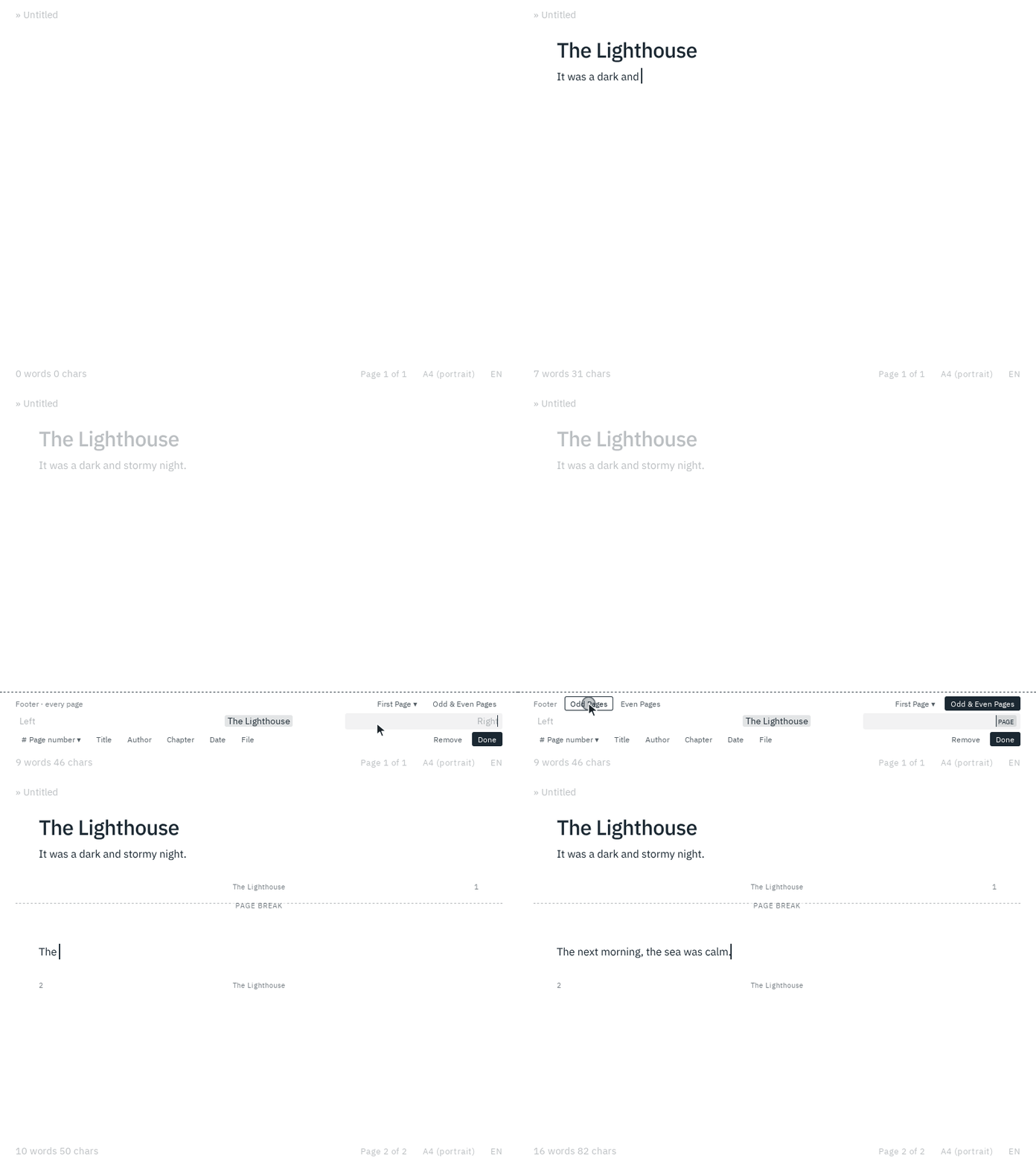
When the first or even pages have their own, the strip's Editing row switches between them. Opening a header or footer on a page shows the one that page has: the first page's own on the first page, the even pages' on an even one.
Page breaks
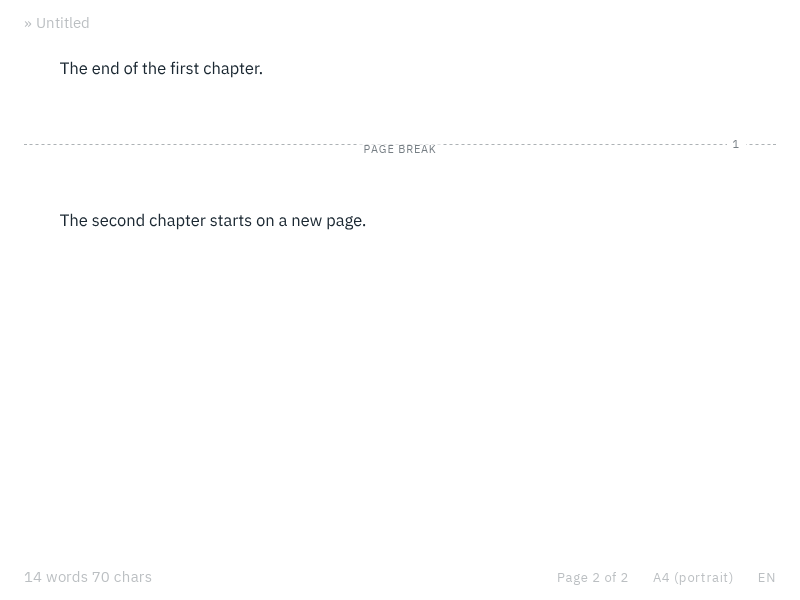
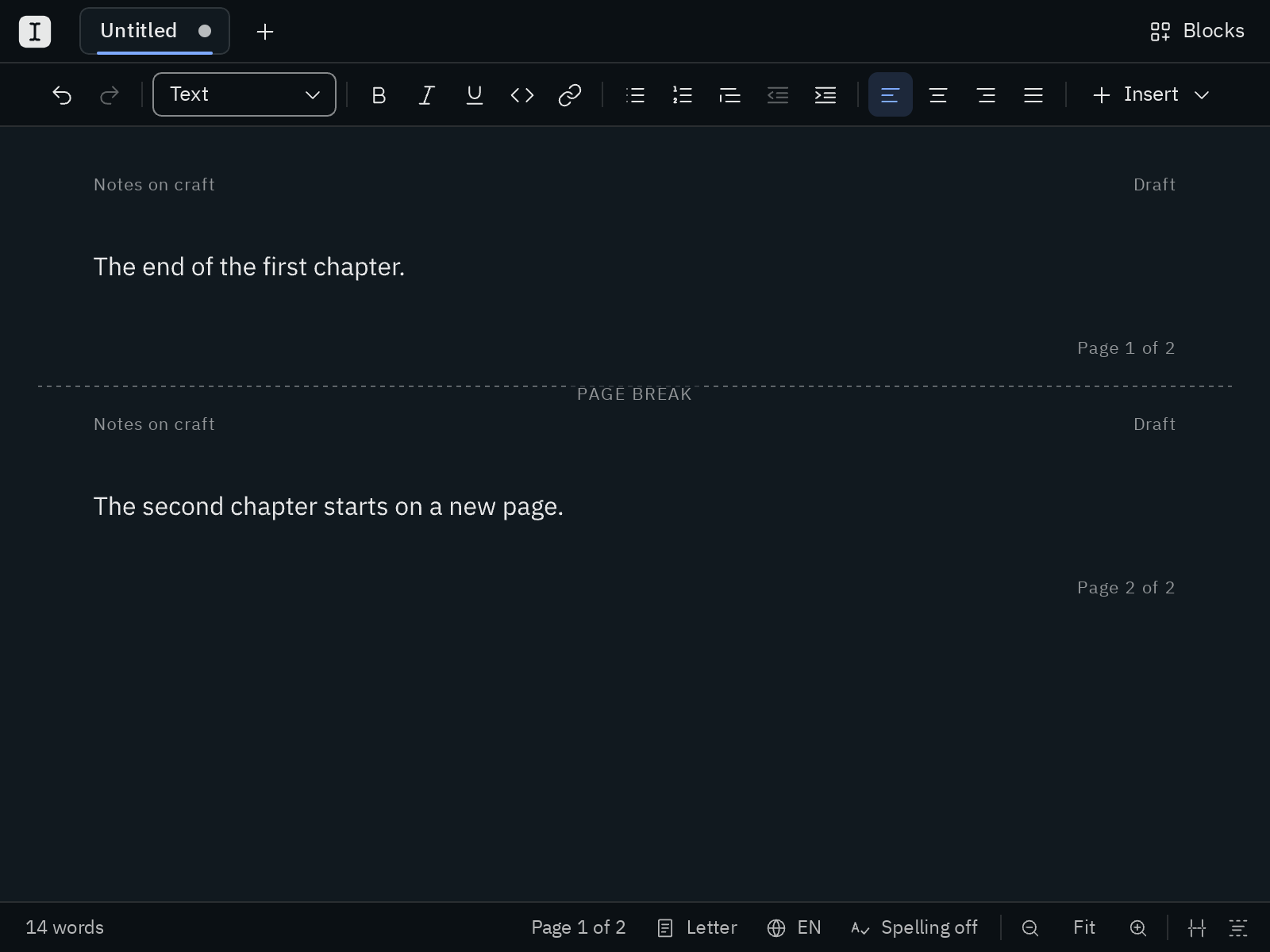
Press Mod Enter to continue on a new page, as in Word and Google Docs. You can also type +++ on an empty line and press Enter. The page ends right there, and Blank labels it Page break (only on the screen, not on paper). To remove it, press Backspace at the start of the line below it.
In the file, a page break is the line <!-- pagebreak -->, which other markdown apps don't show. Blank also reads pandoc's \newpage.
Chapters on new pages
For a book, a thesis or a long report, turn on H1 under New page before in the page setup: every heading 1 then starts a new page, in the PDF and in Word. Turn on more levels, e.g. H2 for sections, and those start new pages too. With the keyboard, ← → move between the headings and Space turns one on or off.
A heading right after a page break stays where it is, so you never get an empty page. In the properties, the setting reads new-page-before: [1, 2].
Where the page setup is kept
The page setup belongs to the document, so it prints the same on every computer. Blank writes it into the properties at the top of the file, and only what differs from your defaults:
---
page:
  size: a5
  orientation: landscape
  margins: 2cm
  header: { left: "{title}", right: "Page {page} of {pages}" }
  footer: { center: "{page}" }
  first-page: plain
  even-pages:
    header: { left: "Page {page} of {pages}", right: "{chapter}" }
  number-style: i
---
You can write these yourself too. new-page-before lists the heading levels that start a new page. header and footer have a left, center and right of one line each, in which {page} is the page number, {pages} the number of pages, {title} and {author} come from the properties, {chapter} is the chapter of the page, {date} the date of the export and {file} the name of the file; write {{ for a brace of your own. first-page is plain for none on the first page, or its own header and footer, and even-pages has the header and footer of even pages, or is same for the same as on the other pages. number-style is 1, i or I, and start-number: 0 numbers the pages from 0, e.g. to leave the title page uncounted. size is a3, a4, a5, b5, letter, legal, auto for the paper of your region, or a size like 170mm x 240mm. margins is one length for all four sides, or top, right, bottom and left on their own lines. Lengths are written with their unit: mm, cm, in or pt.
The page setup stays out of the way of your text: the bar at the bottom shows the paper, e.g. A5 landscape, and a click on it opens the page setup.
If a setting can't be used, say a paper size Blank doesn't know, the export uses your default for it and tells you so.
Your defaults
Make this my default in the page setup keeps the settings for every document that doesn't have its own. Blank saves them in blank.json.
Page setup and Word
Word documents keep their page setup both ways: an export to Word has your paper, orientation, margins, page breaks, chapters on new pages, and your headers and footers with Word's own page numbers, chapter, date and file name, including those of the first and even pages. A Word document you open brings along its own, including its page breaks, section breaks, headers, footers and page numbers. If someone changed the page setup in Word, you get their version.
Word can do a few things Blank's page setup can't hold. When a document has them, Blank tells you right after opening it:
- sections with different page setups: Blank uses the first one,
- a binding margin, which is left out,
- mirrored margins for printing both sides, which become the same on every page,
- pictures, tables or several lines in a header or footer, of which Blank keeps the text on one line,
- page numbers in letters (a, b, c), which become 1, 2, 3.
Headers and footers keep their text, not its formatting: bold, colors or another font are left out, as in the rest of the document.