
The main menu
Everything Blank can do is in one menu, behind the logo at the top left. Click it, or press Mod K wherever you are.
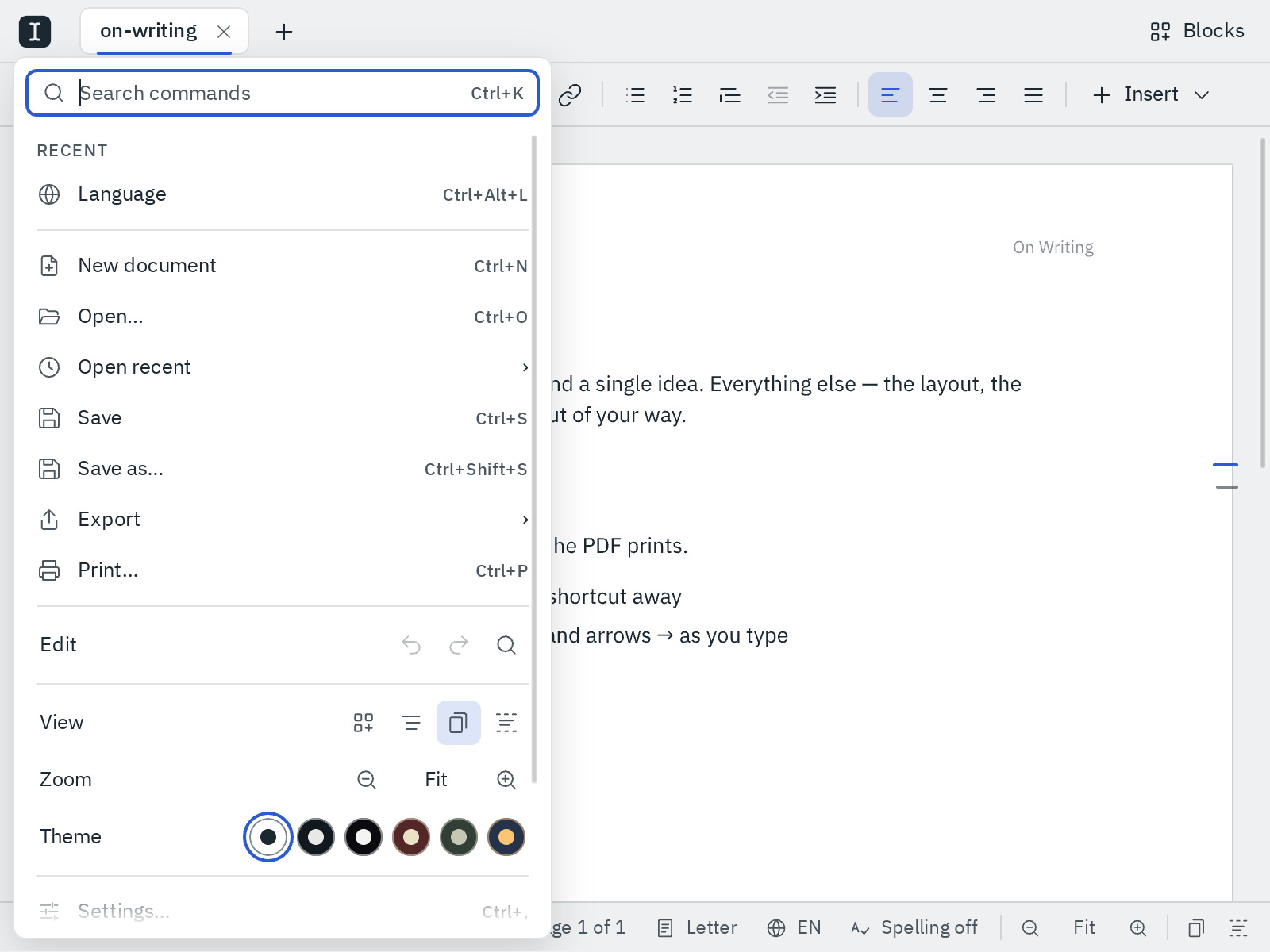
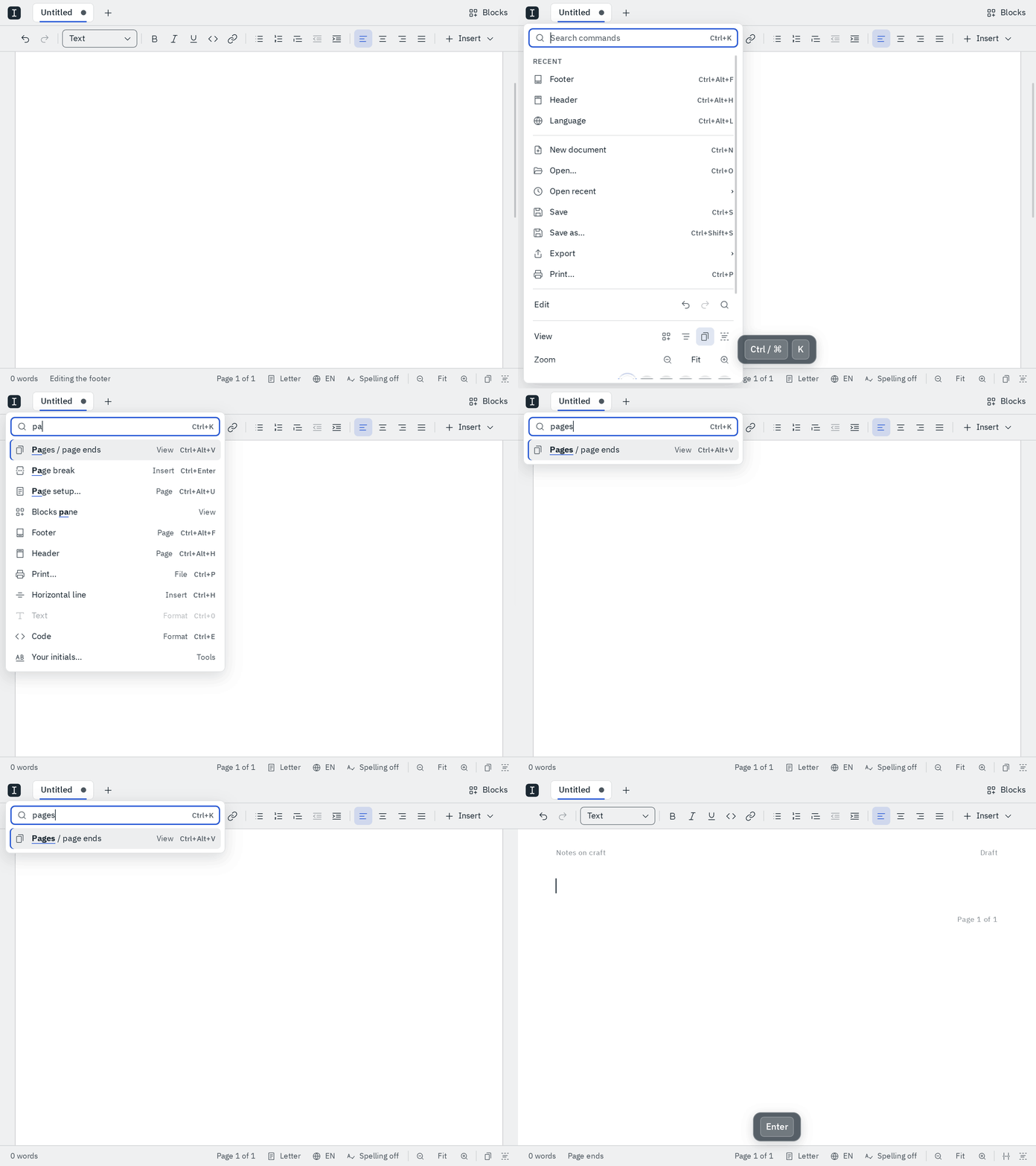
Search for a command
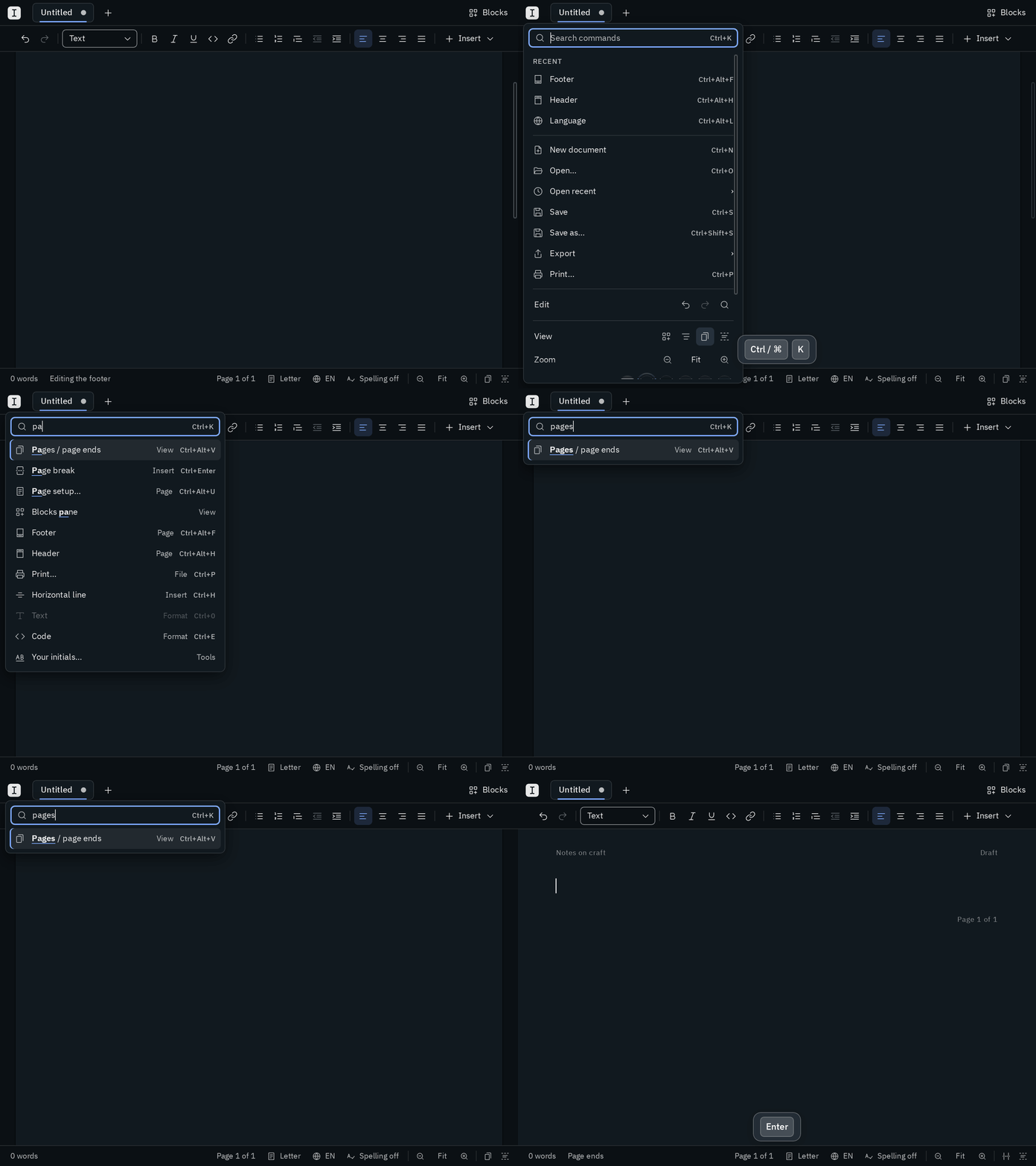
The menu opens with the cursor in its search field. Type a few letters of what you want, like pdf, table or dark, and Blank lists the commands that match, with their group and their shortcut. The first one is ready: press Enter to run it, or move to another with ↑ and ↓. Among equally good matches, the commands you used recently come first.
The search finds every command, also the ones that aren't in the menu itself, like inserting a table or setting the language. Esc clears what you typed, and a second Esc closes the menu.
What's in it
- Recent: the last few commands you ran, once there are some. It leaves out what the menu shows anyway, and typing like Bold done with its shortcut.
- File: new, open and save, Open recent with the last ten files you opened or saved, Export as PDF or Word, or as a signed PDF, and Print. A recent file that has moved or was deleted is taken off the list when you try to open it, and Clear list empties it.
- Edit: undo, redo and find and replace.
- View: the blocks pane, the outline, pages or page ends and focus mode. The menu stays open, so you can see the switch change; the blocks pane opens with the cursor in its search.
- Zoom: smaller, the zoom (a click fits the pages to the window again) and larger.
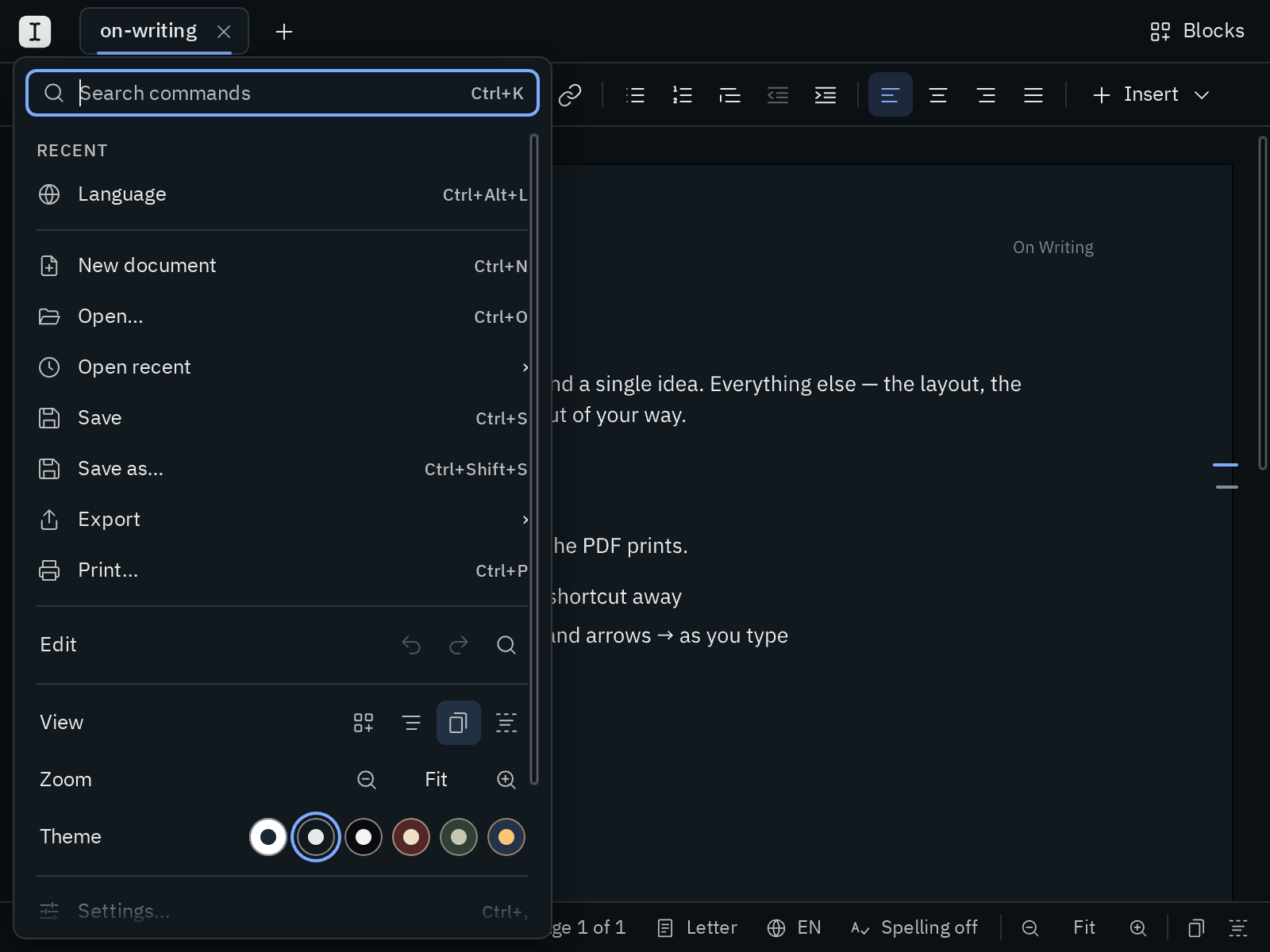
- Theme: a swatch for each theme, in its own colors.
- Settings opens the settings, Keyboard shortcuts and About Blank open them on that section, and Guide opens this guide in your browser.
What can't be done right now is greyed out, and pointing at it says why: in a PDF tab, for instance, saving, exporting, find and the page setup, while Print prints the PDF and the zoom zooms its pages.
With the keyboard
↓ in the empty search field goes into the menu at its top, ↑ at its bottom, and ↑ ↓ move through it; ↑ on the first line goes back to the search. In a row like View, ← and → move between its buttons. → or Enter opens Open recent and Export, and ← closes them again. When you start typing in the menu itself, the letters go to the search. Mod K while the menu is open brings you back to the search.
The logo is also part of the row of tabs: press F6 to reach the tabs, then Home or ← on the first tab to get to the logo, and Enter opens the menu.