
Settings
Press Mod , to open the settings. Everything you change applies at once, in every tab, and stays after a restart: there is nothing to save and no need to start Blank again. Close them with Close or Esc.
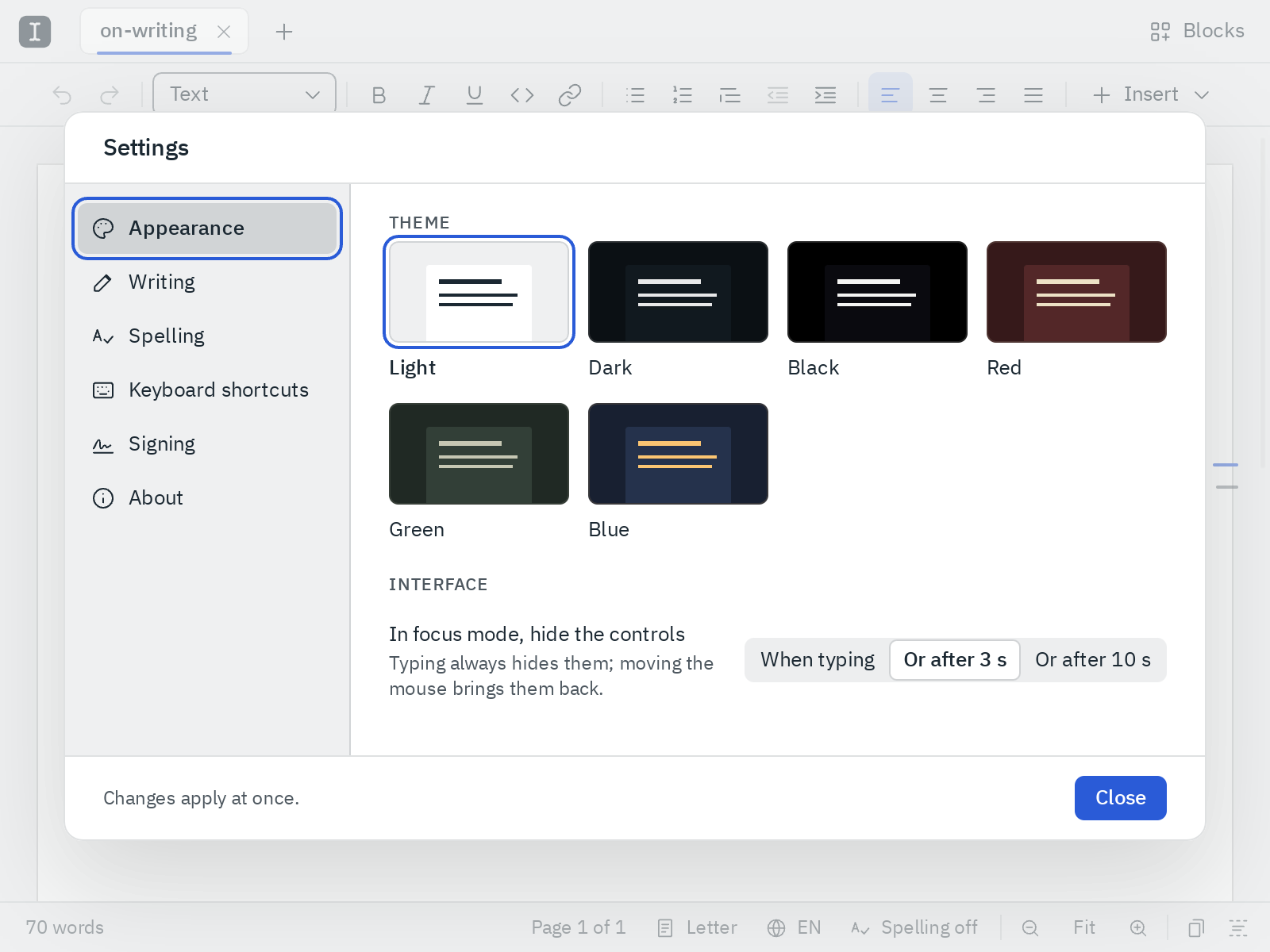
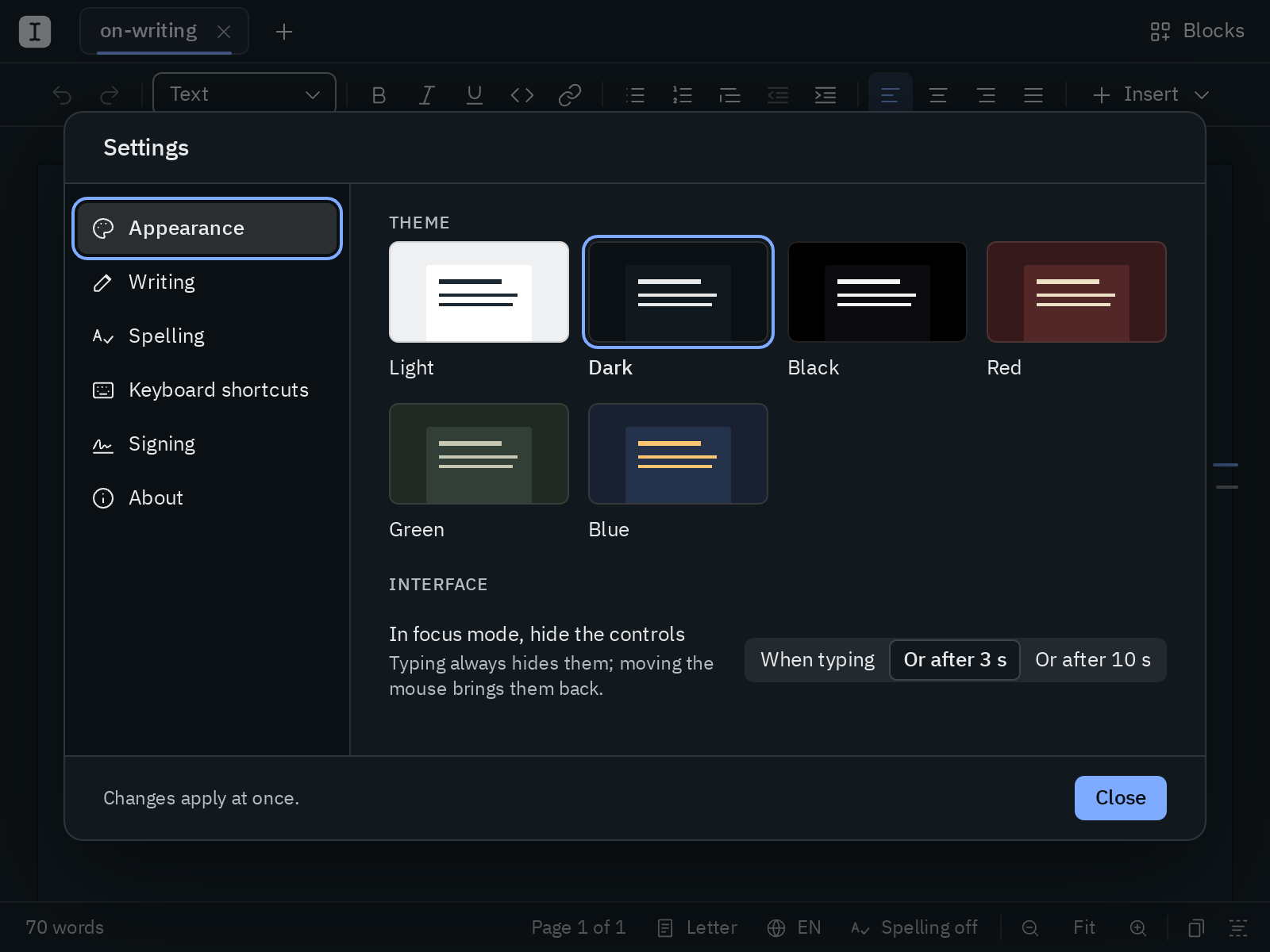
The sections are listed on the left; ↑ and ↓ move between them, and the settings open again on the section you saw last.
Appearance
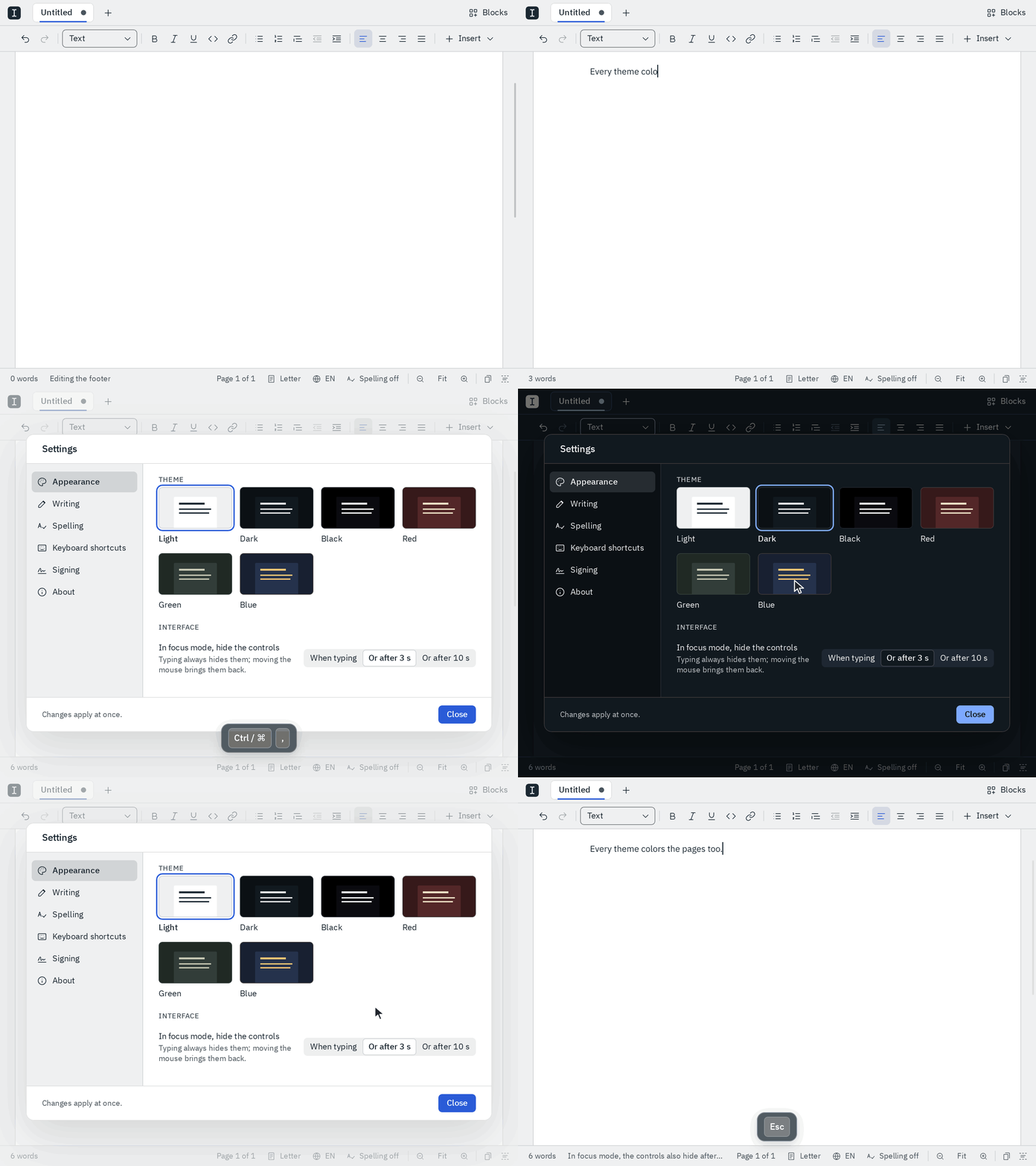
- Theme: click a card to switch to that theme. Each card shows the theme's own colors, and the window behind the settings changes with it, so you see your pages in it right away.
ModAltTcycles through the themes without opening the settings. - In focus mode, hide the controls: when focus mode lets the tabs, the toolbar and the status bar fade. They always fade as soon as you type. Choose whether they also fade once the mouse has rested for 3 seconds (where Blank starts) or 10 seconds, or only when you type.
Writing
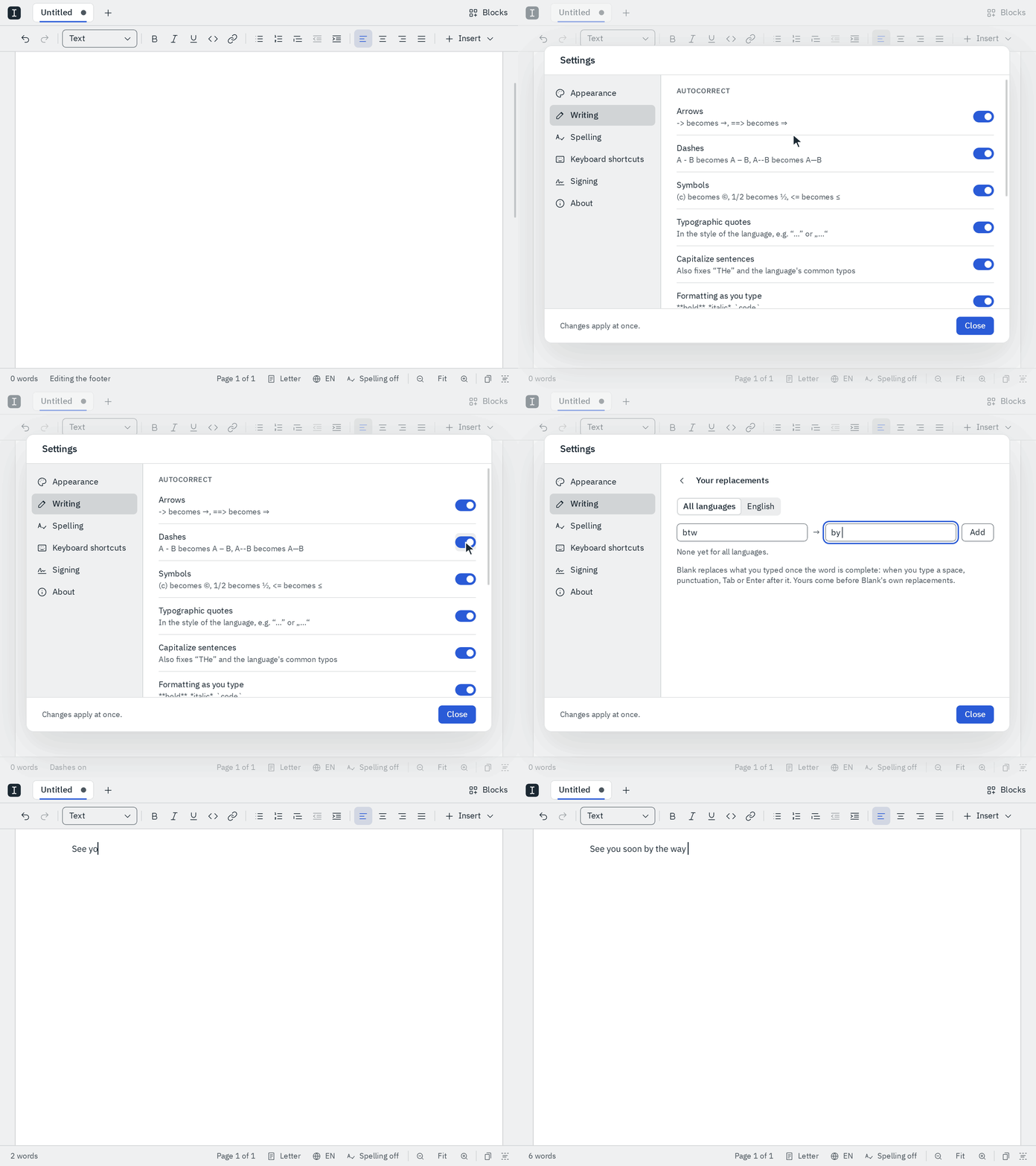
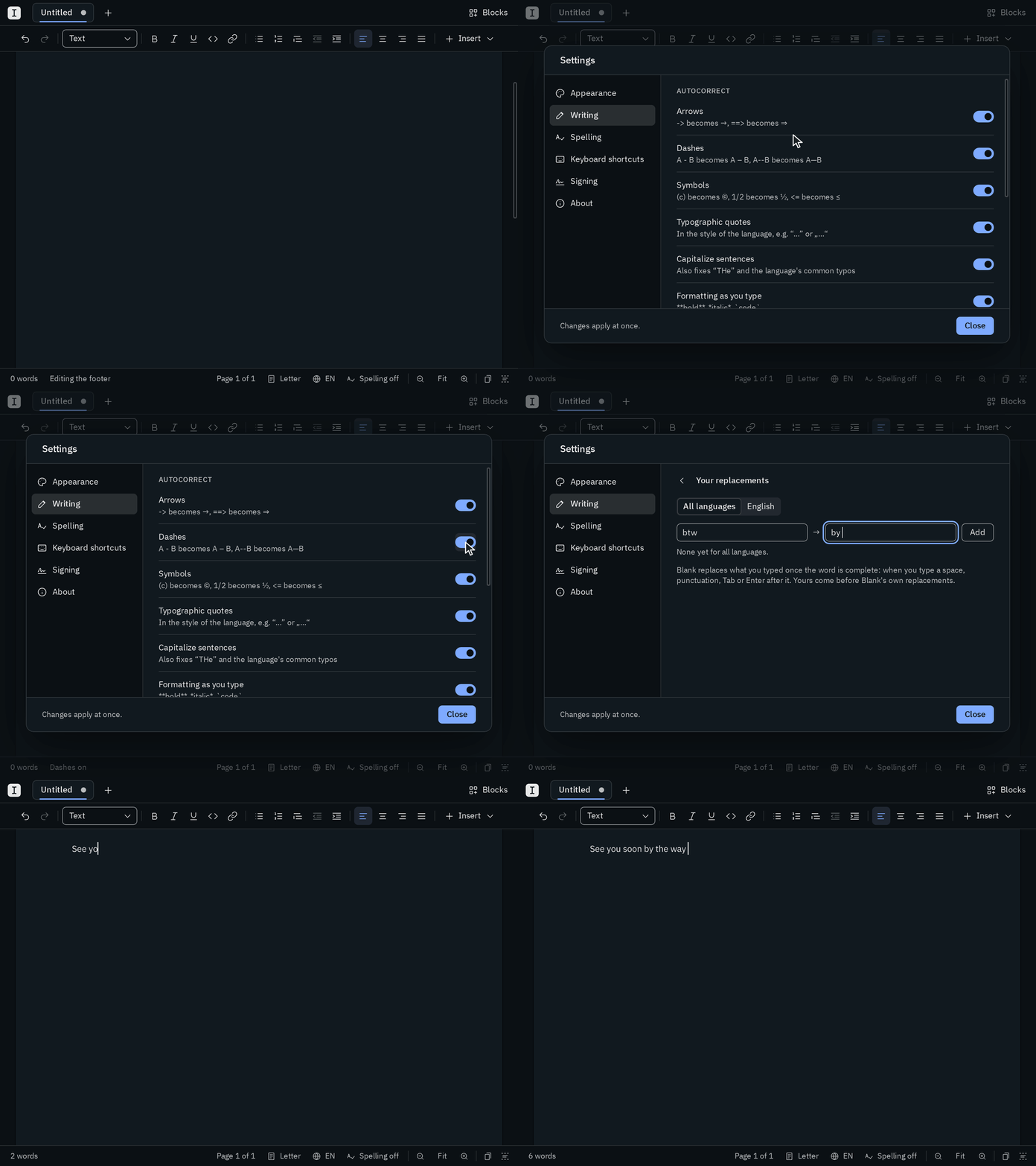
Autocorrect: one switch for each group of autocorrect, each with an example of what it does:
Switch What it does Arrows ->becomes →,==>becomes ⇒Dashes A - Bbecomes A – B,A--Bbecomes A—BSymbols (c)becomes ©,1/2becomes ½,<=becomes ≤Typographic quotes quotes in the style of the language, like “…” or „…“ Capitalize sentences a capital at the start of a sentence, and fixes THe Formatting as you type **bold**,*italic*and`code`Blocks as you type #heading,-list,>quote,---lineLinks web and email addresses become links Your replacements: click Edit… to add text that Blank replaces for you, such as
btw→by the way: type what you type into Typed, what it becomes into Becomes, and pressEnter. Choose at the top whether a replacement is for every language or only the one you write in now. Blank replaces it once the word is complete, when you type a space, punctuation,TaborEnterafter it, and yours come before Blank's own. The bin next to one removes it.Escor Back brings you back to the section.Indent size: how many spaces
Tabindents a line of a code block by, from 1 to 16.
Spelling
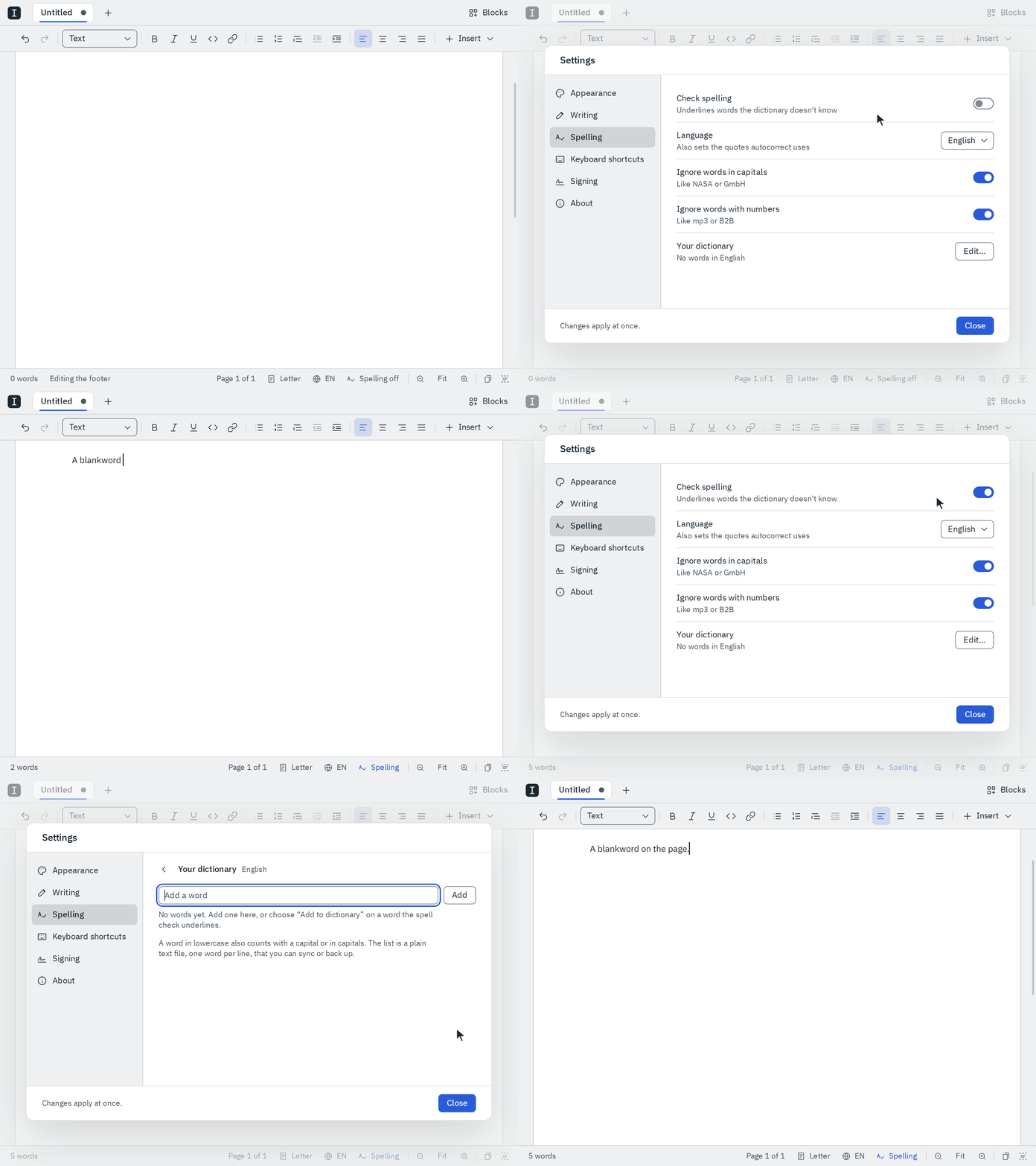
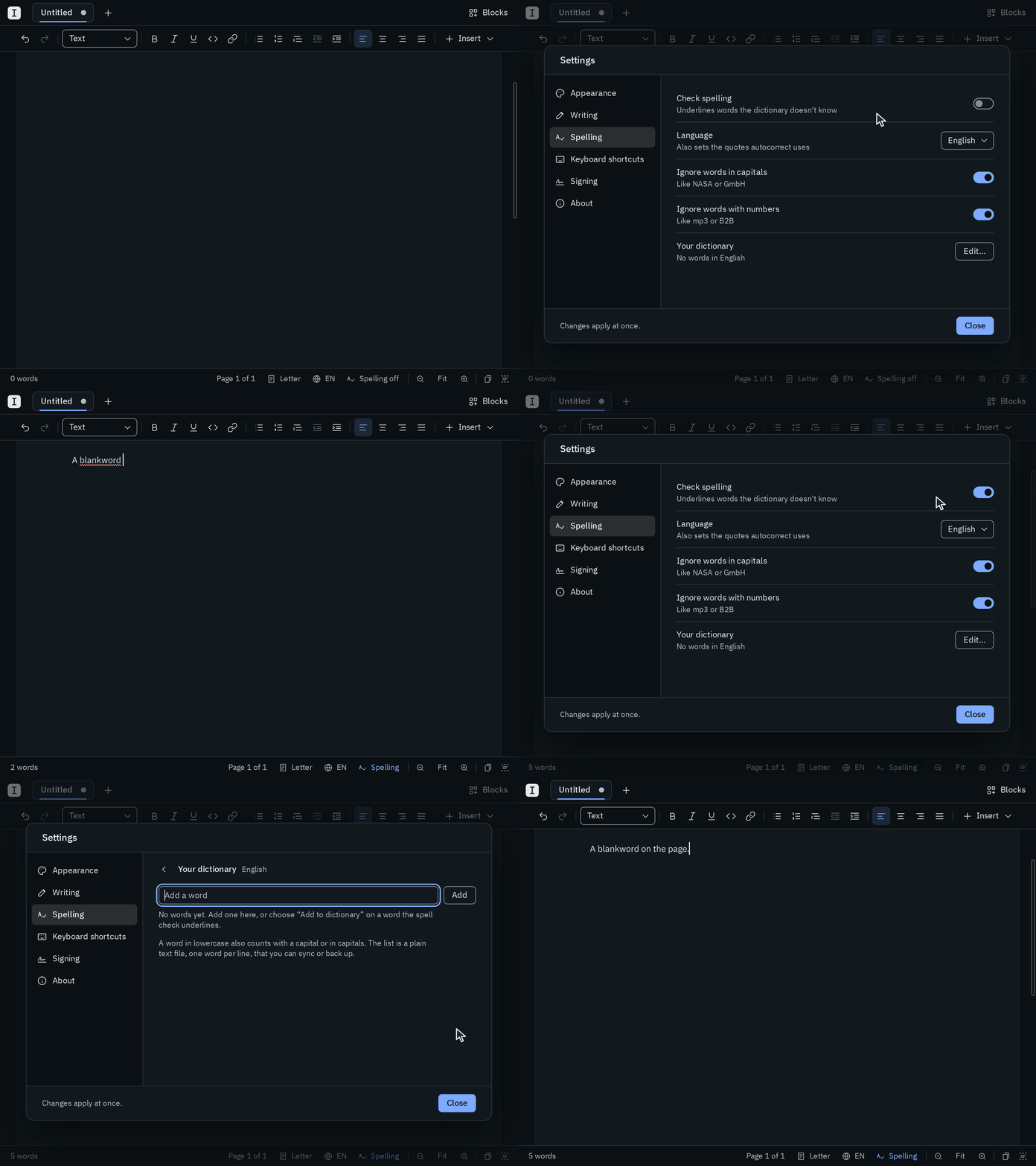
- Check spelling turns spell check on or off, like
ModAltSand the Spelling button in the status bar. - Language chooses the language of spell check and autocorrect, like
ModAltL. A language that doesn't come with Blank is downloaded the first time you check it. - Ignore words in capitals and Ignore words with numbers leave words like NASA or mp3 alone. The text is checked again as soon as you change them.
- Your dictionary: click Edit… to see the words you added in the current language, add new ones and remove others. Underlines go and come at once. Add to dictionary in the menu of an underlined word adds it too.
Keyboard shortcuts
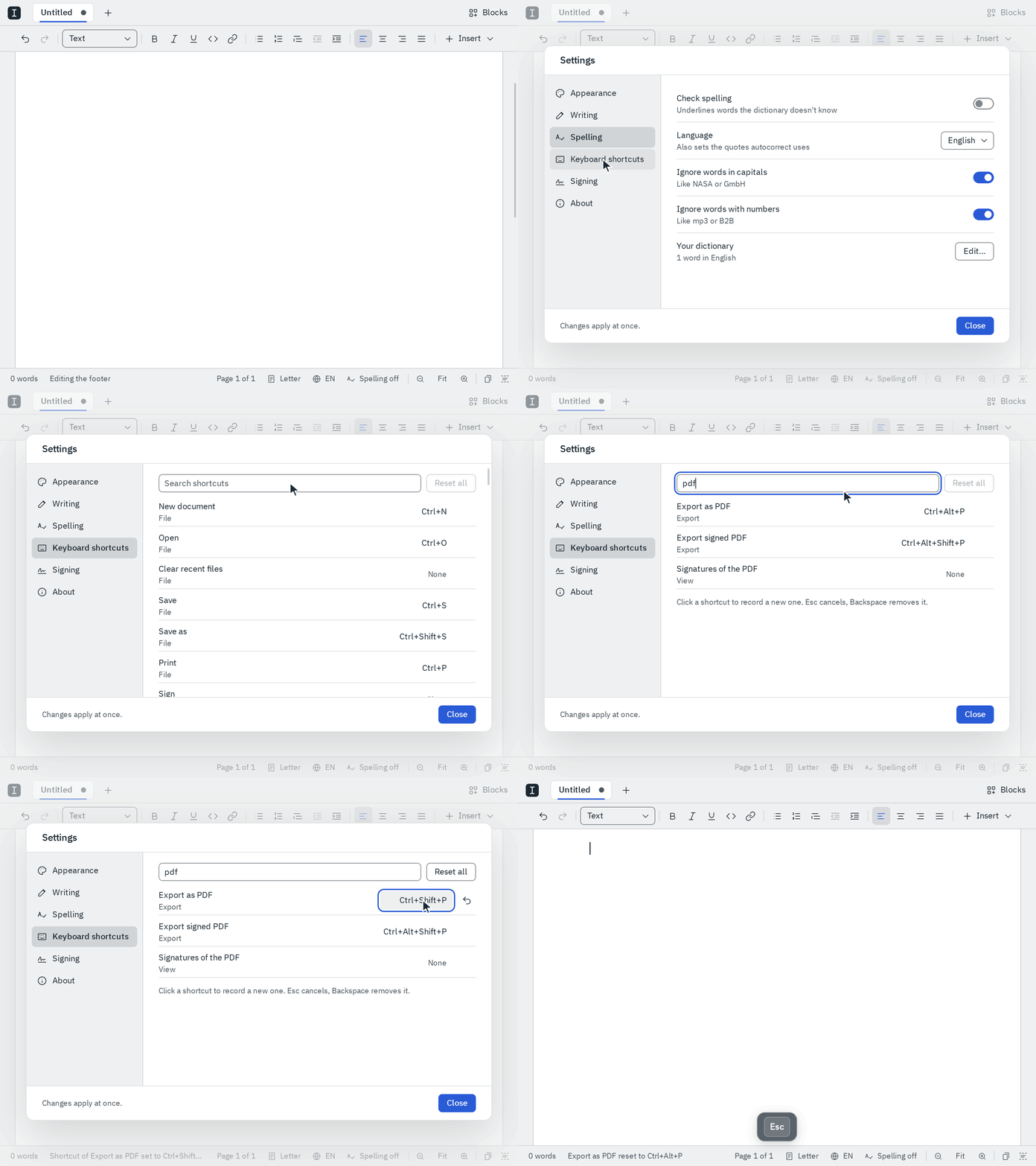
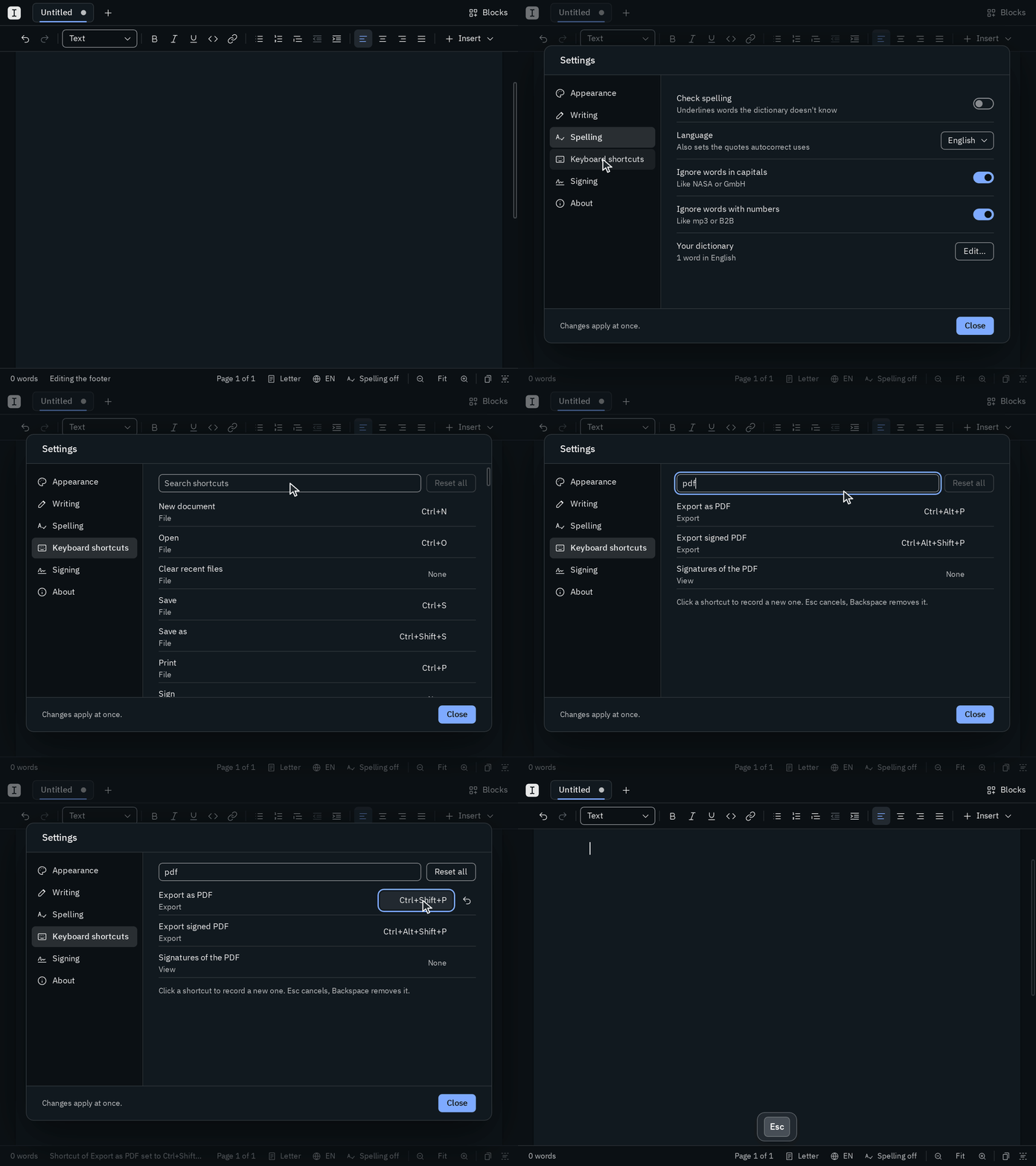
Every command, with its shortcut. Type into the search to find one by its name. Click a shortcut, or press Enter on it, and press the new keys: they work at once, in every tab. If another command has them already, Blank says which one, and a second press moves them over. A changed shortcut has a button next to it that brings back Blank's own, and Reset all does that for every command. See Change a shortcut for the keys you can use.
Signing
- Signature and Initials: your signature and initials as Blank signs with them. Add… or Edit… opens the dialog to draw, type or choose them, and Remove forgets them.
- Your name: the name under your signature, in a signature block that doesn't name who signs.
- Certificate: your certificate for digital signatures: Create certificate… for a new one or Import key file… for one you have. Once you have one: who made it and until when it's valid, Save certificate… (the certificate alone, for others to trust), Back up key… and Remove (which asks first), and its fingerprint with Copy.
- Timestamp server: a server that proves when you signed; Use DigiCert fills in a free one.
- Trusted certificates: the certificates of others you trust, whose signatures then show as Signed in PDFs, each with the start of its fingerprint and Remove.
- Date: how the date next to your signature is written: the long form of the document's language (8 October 2026), its short form (08.10.2026 in German, 10/08/2026 in American English) or 2026-10-08.
About
Blank's version, its license, links to the website and the source code, and the licenses of the software Blank is built with.
Where the settings are kept
The theme, the language, whether spell check is on, where you signed last and whether you put your initials on every page are kept with your documents, and so is what you filled in and placed on a PDF you haven't signed yet. Your signature and initials are in the signing folder next to blank.json. Everything else is written to blank.json, which only holds what you changed. You can still edit that file by hand; then restart Blank to use what you wrote.