
Print
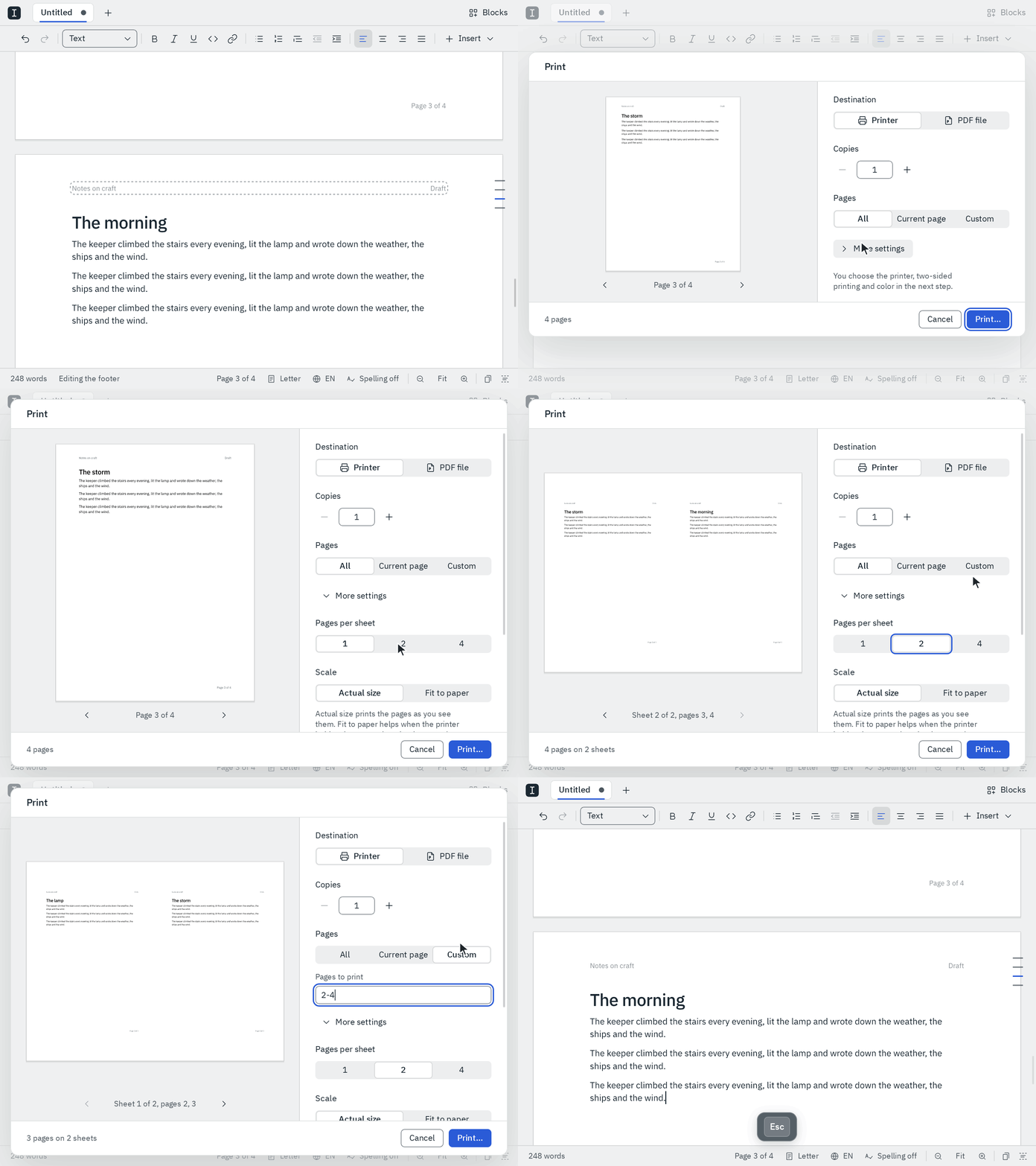
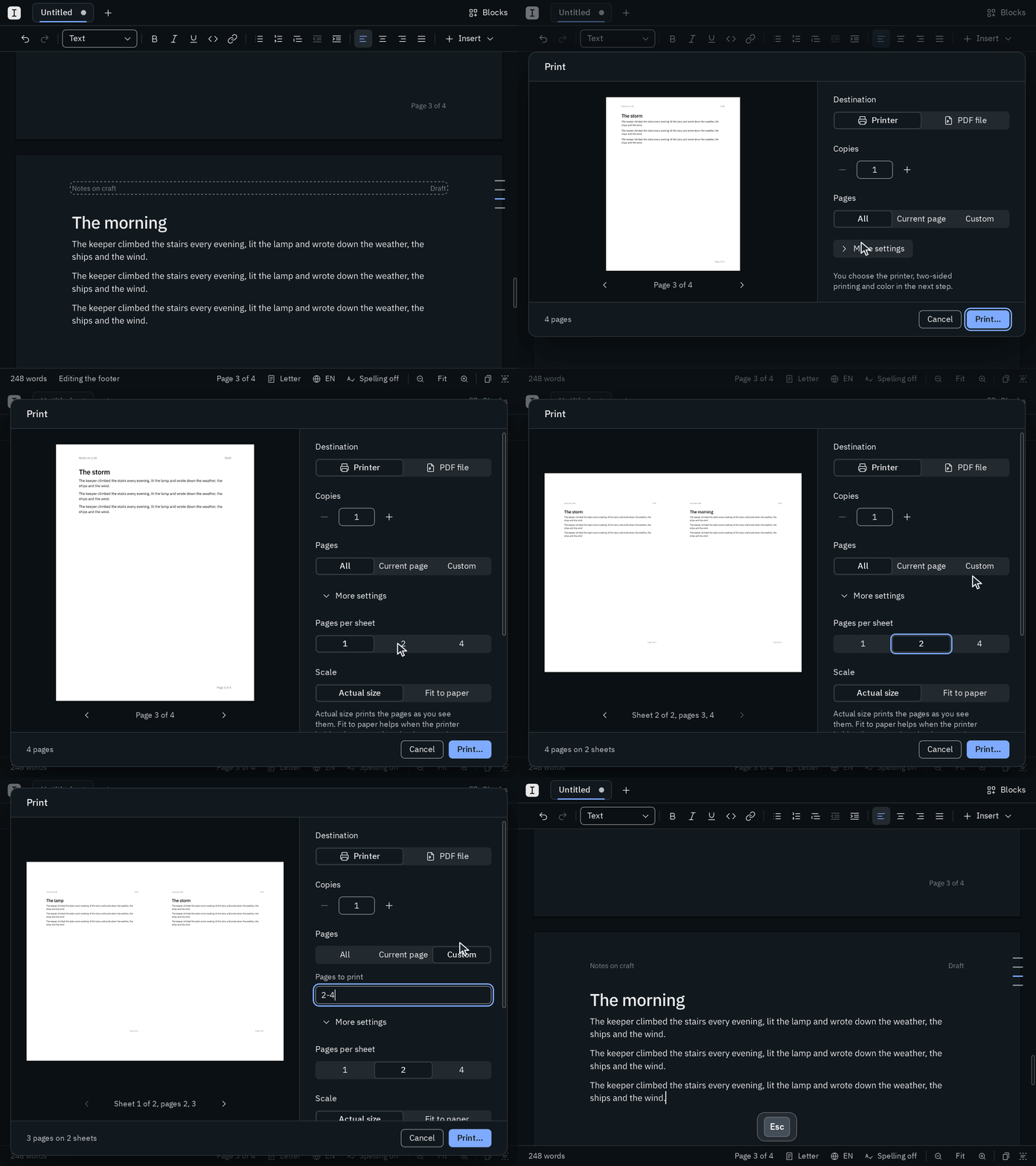
Press Mod P and then Enter, and your whole document goes to your system's print dialog, ready for the printer. That's all most prints need. Blank's print dialog shows the pages as they'll come out of the printer, so you can check them before any paper is used.
What prints
The preview on the left shows only the pages that will print, one sheet at a time, in ink on white paper whatever theme you use. They're the same pages you see on the screen and in your PDF, with your header, footer and page numbers. Placeholders and spelling marks stay on the screen. ‹ › or Page Up and Page Down leaf through the sheets, and the line at the bottom left sums it up, e.g. 3 pages on 2 sheets, 2 copies.
- Copies: type a number, click
−and+, or press↑and↓in the field. From two copies on, Keep each copy together prints each copy whole before the next. - Pages: All, the Current page (the one your cursor is on; point at it to see which), or Custom: type numbers and ranges, like
1-3, 5.4-prints from page 4 to the end, and-2the first two pages. If a page isn't there, Blank tells you as soon as you stop typing, and waits until the pages are right. - More settings:
- Pages per sheet: 1, 2 or 4. Two pages go side by side on a sheet turned sideways; four go in two rows.
- Scale: Actual size prints your pages as you see them. Fit to paper shrinks or grows them to fill the paper the printer holds, which helps when it isn't your document's paper.
- Paper: your document's page setup decides the paper. Page setup… takes you there.
Blank remembers the destination, pages per sheet and scale, and whether More settings is open. Copies and pages start over each time.
The printer and its options
Print… opens your system's print dialog next. There you choose the printer and what it offers, like printing on both sides, in color or from another tray. Blank's dialog has already chosen what only Blank knows: the pages, how they fall on the sheets, and how many copies.
A PDF instead
Choose PDF file as the destination and the button turns into Save PDF…: Blank saves the pages you chose as the same PDF that Export as PDF writes, only with fewer pages if you picked some. Its bookmarks and table of contents links lead only to pages that are in it. Mod Alt P still exports the whole document.
If printing doesn't work, Blank opens its print dialog again, says why, and is ready to save a PDF you can print from another app.
Good to know
- Linux: printing goes through your desktop's print service (the print portal), in the Snap too. Desktops without it can't print from Blank; save a PDF and print it from another app instead. The system doesn't tell Blank the printer's name, so Blank says Sent 3 pages to the printer.
- Windows: Windows' print dialog doesn't take the copies from Blank, so set them again there. It doesn't tell Blank which paper the printer holds either, so to fit the pages to it, use the scaling in Windows' print dialog. And it doesn't tell Blank whether you printed, so Blank says nothing afterwards.
- macOS: the print panel opens on top of Blank and shows the copies you chose.
- Printing needs Blank's page layout. If it couldn't start or stopped working, Blank shows your text without pages and can't print until you restart it.
- A PDF you opened prints as it is, straight from the system's print dialog.